Nurse > Pay Adjustments
There will be times when you need to make an adjustment to a Nurse’s wage, positive or negative, that is not related to a specific shift with a Hospital.
Nurse adjustments have been created to provide you with maximum flexibility and control when recording an adjustment.
The adjustment may be related to recouping an advance, over payment, uniform deductions or paying a telephone allowance or child support deductions.
Nurse Adjustment Types
Data Entry > Types > Adjustment Types
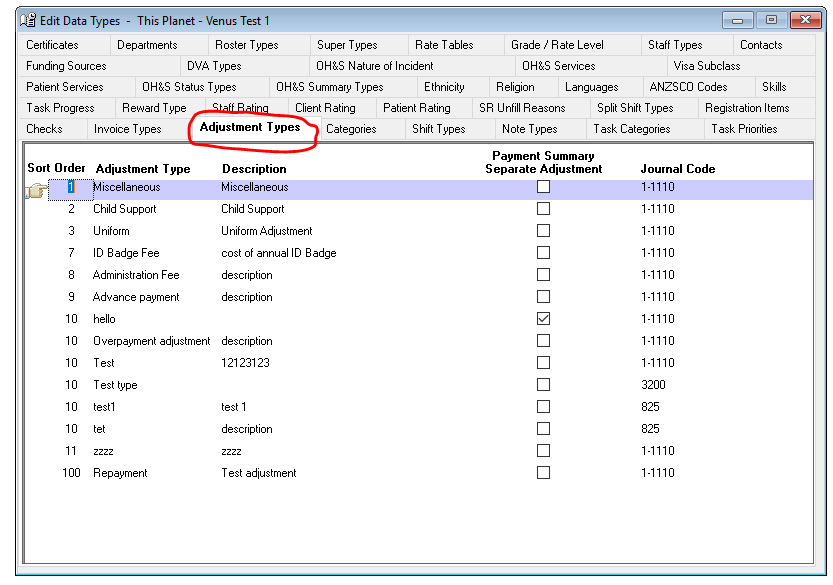
You create adjustment types to suit your business needs.
Adjustment types are used to group adjustments on the Adjustment Applied Report.
Nurse Pay Adjustments Screen
Nurse > Nurse Pay Adjustments
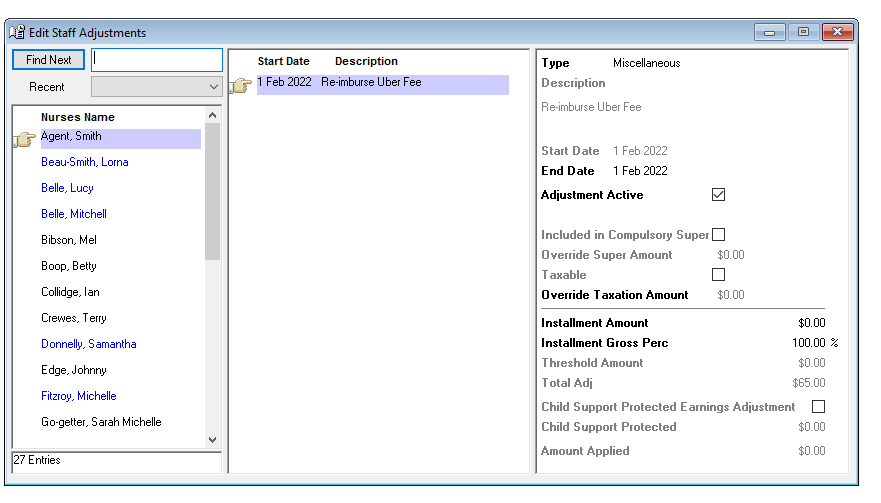
There are three sections to the Nurse Adjustment screen:
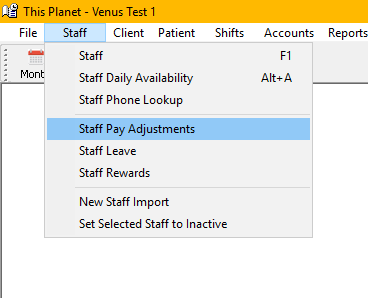
- Nurses Names – Alphabetical listing of all active Nurses with the “Find First” function. The names will appear in blue if there is an active adjustment. The index finger points to the active nurse.
- Start Date and Description – An overview of the adjustments for the selected Nurse.
- Adjustment Details – Complete details of the adjustment.
Adding a Nurse Adjustment
To add a Nurse Adjustment -
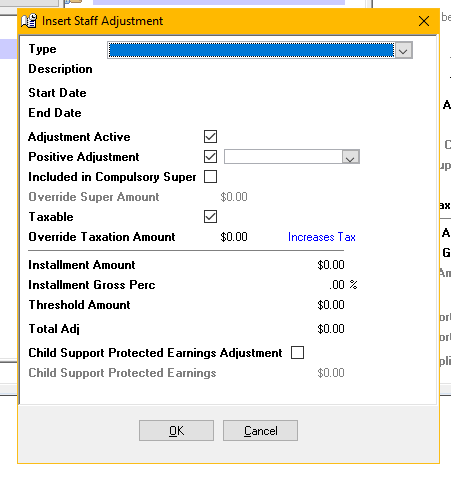
- Select Insert on the Nurse Adjustment screen.
- Type – Select the Adjustment type from the drop-down menus.
- Description – A free text area. The description is displayed on the payslip.
- Start Date – The date the adjustment commences.
- End Date – The date the adjustment ceases. This field is not compulsory. Leave the end date blank for ongoing adjustments. The adjustment will be applied until the total adjustment amount has been reached, until an end date is recorded or until the adjustment is made inactive.
- Adjustment Active – Tick if the adjustment is active, remove the tick if the adjustment is to cease.
- Positive Adjustment – Tick for a positive adjustment to increase the Nurse’s pay. Remove the tick for a negative adjustment to reduce the Nurse’s pay.
- Included in Compulsory Super – Tick to include the adjustment in the superannuation gross calculations. Remove the tick if the adjustment is not to be included in the superannuation gross.
- Override Super Amount – This field only active if the Compulsory Super box is ticked. Enter the amount of super to be adjusted, or Venus will calculate the super using the Employer Compulsory percentage.
- Taxable – Tick to include the adjustment in the taxable gross calculations. Remove the tick if the adjustment is not to be included in the taxable gross.
- Override Taxation Amount – This field will only be active if the “Taxable” box is ticked. Enter an amount to override the usual tax calculated on the adjustment amount, if required.
To indicate the effect of the override tax amount the following is shown –
- If the Positive Adjustment is ticked – Increases Tax is noted next to this field.
- If the Positive Adjustment is not ticked – Reduces Tax is noted next to this field.
- Instalment Amount – A monetary amount; or
- Instalment Gross Percentage – The percentage to be applied to the gross pay
- Threshold Amount – This field is not compulsory. Enter the minimum gross amount a Nurse must earn before the adjustment is to be applied. This is important for negative adjustments.
- Total Adjustment – This field is not compulsory. This field is used for adjustments paid in instalments. Adjustments will be applied until the total amount of the adjustment is achieved.
- Child Support Protected Earnings Adjustment – Tick if to be applied.
- Child Support Protected Earnings – The amount set by the Child Support Agency as a protected net income amount
Important Note: Child Support deductions take priority over other active adjustments based on the Threshold amount set.
Note. Protected Earnings amount is a set amount of an employee’s or contractor’s wages that are exempt from child support deductions. As the Instalment Gross percentage works with the gross pay (as opposed to the amount above a set amount) it cannot be used in conjunction with The Protected Earnings Adjustment.
OK – To save and exit.
Cancel – To exit without saving.
When the adjustment is saved a new field “Amount Applied” appears on the Adjustment Details screen. It displays a running total of the adjustment applied and is updated with each payslip generation.
Adjustments Applied Report provides details of all adjustments applied for a specified period based on generated payslips.
Editing a Nurse Adjustment
When a Nurse Adjustment has been created the only fields, you can edit are-
- Adjustment Type
- End Date
- Adjustment Active
- Instalment Amount and
- Instalment Gross Percentage.
You can change an adjustment from a fixed weekly amount to a percentage of the weekly wage, and vice-versa
Deleting a Nurse Adjustment
You can only delete a nurse adjustment before an adjustment amount has been applied to a payslip.
You cannot delete an adjustment after it has been applied. If you want to stop an adjustment, make the adjustment inactive.