An overview of each field in each tab follows-
Personal details
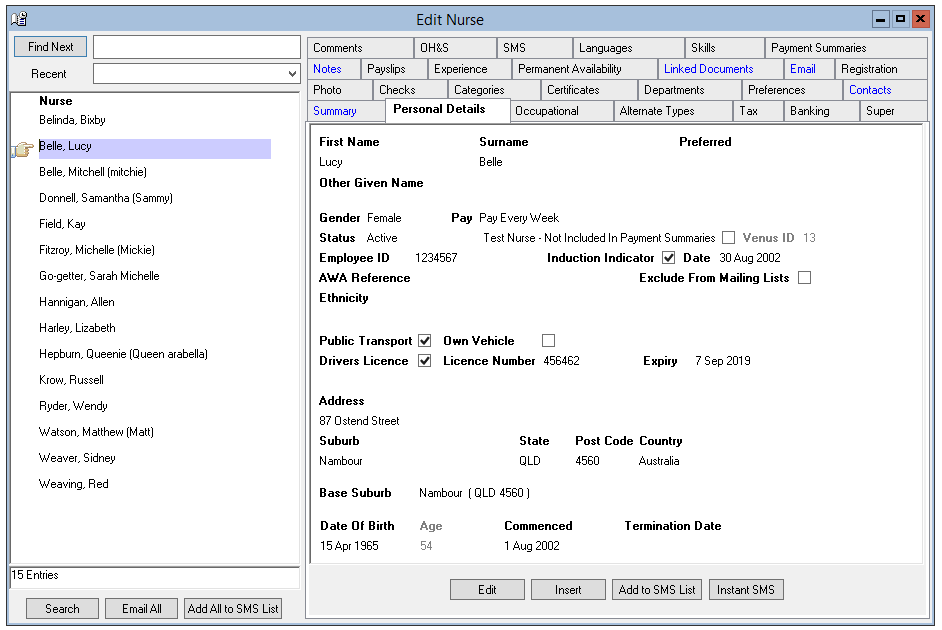
- First Name and Surname
- Preferred – The Nurse’s preferred name.
- Gender – Default “Not Specified”.
- Pay – Drop-down menu. This denotes the frequency that the nurse is paid. Options are Pay Weekly; Pay on Even Fortnights and Pay on Odd Fortnights.
- Status – All new nurses are active. A nurse can be made inactive by changing the selection in this menu.
Important Information: You now get a message if you change a Nurse from status Inactive to Active where they previously had a termination date. Message reads “The Nurse has a termination date. Would you like to clear it?” If you click YES, the termination date will automatically be cleared for you.
Note: When a nurse status is changed a note is written to the nurse notes tab.
- Venus ID – A system generated ID that cannot be changed.
- Employee ID – An alphanumeric field allocated by your Agency, if required.
- Induction Indicator – Check if induction completed. This is reported in the Nurse Induction Report.
- Induction Date – Insert date induction completed.
- AWA Reference – Australian Workplace Agreement Reference, if the Nurse is covered by an AWA
- Exclude from Mailing Lists - Tick if the Nurse is to be excluded from postal mailing lists.
- Public Transport – Tick if the Nurse travels by public transport.
- Own Vehicle – Tick if the Nurse has access to own vehicle.
- Drivers Licence – Tick if the Nurse has a current drivers licence
- Drivers’ License Number
- Drivers’ Licence Expiry Date – A warning will appear if a Nurse is rostered for a shift where a current drivers’ licence is required.
- Mailing Address, Suburb, State, Postcode and Country – Venus can accommodate international addresses. The State box can be overtyped and both the State and Postcode boxes allow 5 characters. If the residential address is different, it can be recorded under the Contact tab. Australia Post postcodes are automatically inserted.
- Base Suburb – Where the Nurse usually travels from. Used by Venus to calculate how far the Nurse must travel from her base (or home) suburb to a Hospital. The distance is shown on the Single and Multi-Shift Rating Screens.
- Date of Birth - Nurse’s Date of Birth
- Age – Automatically calculated.
- Commenced – Date the Nurse commenced with your Agency.
- Termination Date – Date the Nurse’s employment was terminated.
Occupational
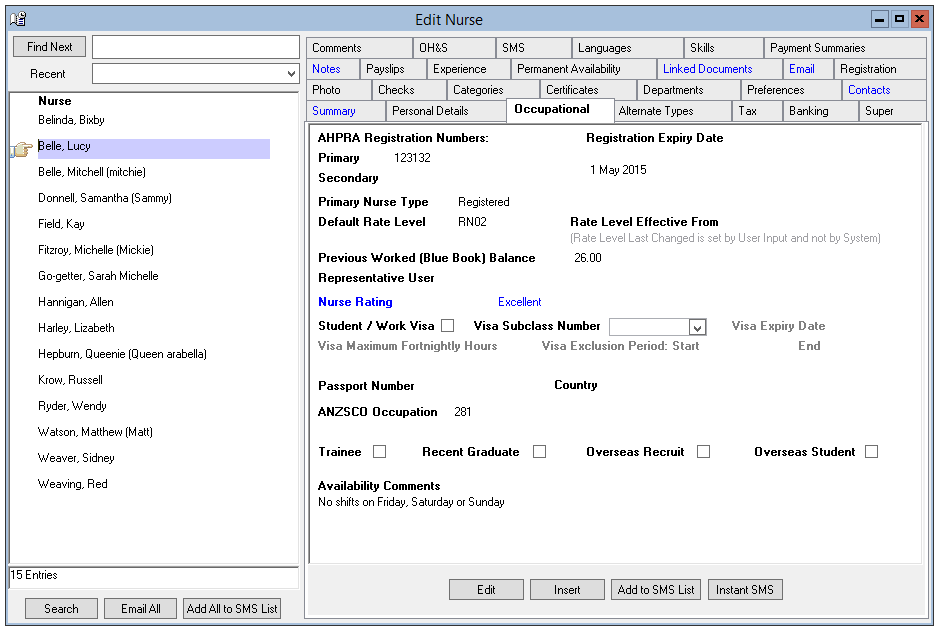
AHPRA Registration Numbers – (Australian Health Practitioners Regulation Agency) Primary and Secondary Registration numbers.
- Registration Expiry Date – The expiry date of the Nurse’s registration. A warning is displayed if rostering a Nurse onto a shift and the registration has expired.
- Primary Nurse Type – Main occupation or employment role. Additional Nurse Types for the Nurse can be recorded under the Alternate Types tab.
- Default Rate Level – Associated with the Primary Nurse Type.
- Rate Level Effective From – Enter the date at this level became effective. (Rate level last changed is set by user input and not by the system)
- Previous Worked (Blue Book) Balance - Insert number of hours to be included in the Hours Worked (Blue Book) Report (record of hours worked by the nurse).
- Representative User – Your team member who is responsible for the Nurse. Select the User Name from the drop-down menus.
- Nurse Rating – Select from drop-down menu.
- Student/Work Visa – Check the box if the Nurse is on a visa
- Visa Subclass Number – From the working or student visa
- Visa Expiry Date – Date of expiry of student or work visa
- Visa Maximum Fortnightly Hours – Record the maximum number of hours a Nurse is allowed to work per fortnight (Student Visas only). A Roster warning will advise if the maximum hours will be exceeded.
- Visa Exclusion Period Start and End dates – Record start and end dates for a period when the maximum hours per fortnight do not apply (Student Visas only). The Visa Maximum Fortnightly Hours calculation and warning are not active during the Exclusion Period. When the Exclusion Period information is updated, Venus displays name of the User, and the time and date, of the last update on the Occupational Tab.
- Passport Number – Number on Passport
- Country – Country that issued the Passport
- ANZSCO Occupation – Australian & New Zealand Standard Classification of Occupation Codes. Select the relevant code from the drop-down menu.
- Trainee, Recent Graduate, Overseas Recruit and Overseas Student – Additional options to denote the Nurse’s status.
- Availability Comments – This a free text area to record any permanent comment for a Nurse that should be considered when allocating shifts. This comment is displayed on the Single and Multi-Shift Rating Screens.
Taxation
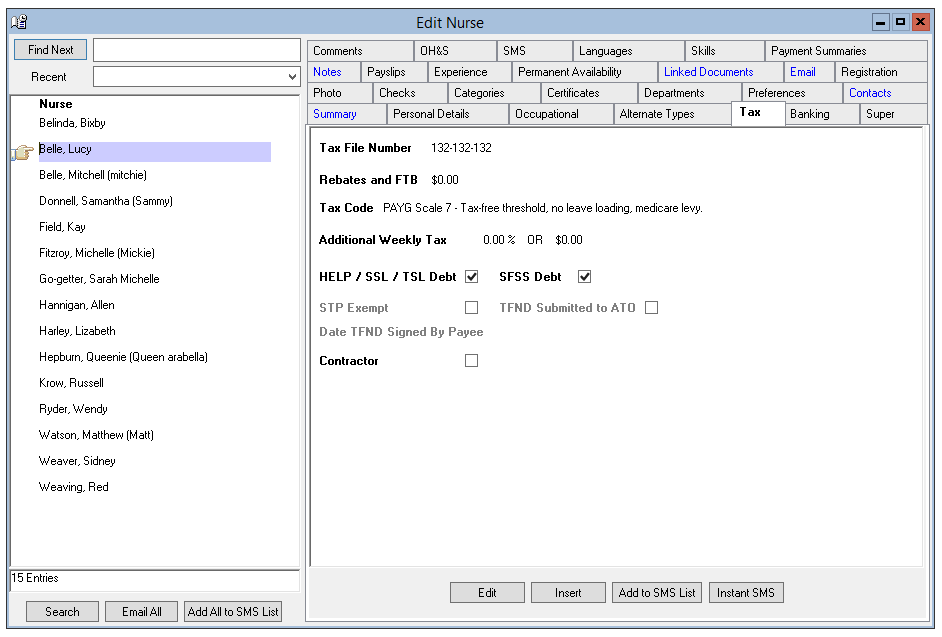
- Tax File Number – This field requires 11 characters with ‘–' at positions 4 and 8. All other characters must be numeric, e.g. 111-111-111.
- Rebates and FTB – Enter the annual Rebate of FTB claimed by the Nurse.
- Tax Code – Select the appropriate tax base for the Nurse. (Note: Pay scale 15 is used for Working Holiday Tax. This does not use the standard tax tables but rather a formula based on ATO directives. The Tax is calculated at a flat rate dependant on the YTD payments.)
- Additional Weekly Tax – This can be either a percentage of the weekly pay or a fixed weekly amount of the Nurse’s gross pay.
- HELP (HECS) Debt – Tick if the Nurse has a HECS/HELP debt.
- SFSS Debt – Tick if the Nurse has a SFSS debt. (The Student Financial Supplement Scheme (SFSS) was a voluntary loan scheme to help tertiary students cover their expenses while they studied. This scheme closed on 31 December 2003. However, all existing SFSS debts continue to be collected through the tax system.)
- Contractor – Tick if the Nurse is a Contractor.
Type – Elect the entity type – Company or Independent
Company – If you select Company above, this is where you enter the name of the Company who has the contract with your agency. The Company name will appear on the Remittance Advice.
Note: If you select Contractor/Company and your accounting package is Xero, there will be an additional field at the bottom of the screen labelled Xero Remittance Override Account. This is because Xero uses a special code for Contractor/Companies.
GST Registration – If you select Company above, this is where you denote whether the Company is GST registered or not
- ABN – The ABN number of the Nurse or Nurse’s company if the Nurse meets the ATO’s guidelines as a Contractor.
- Tax % - If you selected Independent above, this is the percentage of tax the Nurse pays as a contractor.
Banking
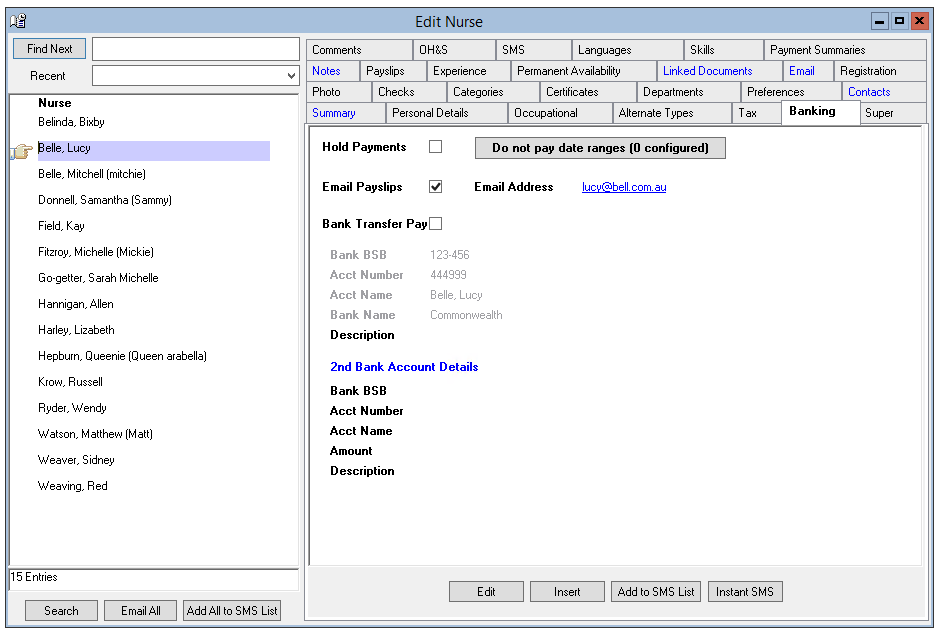
- Hold Payslips – When Hold Payslips is ticked, The Nurse will be removed from payroll until the tick is removed. This can be used for new Nurse who has not yet supplied banking, tax and or super information.
- Do Not Pay Date Range – When selected add the start and end date. Multiple date ranges can be added. The Nurse will not be paid for this period, but the Hospital will be invoiced. This can be used when the Nurse is being paid by another entity or division within your business.
- Email Payslips – Tick if payslips are to be emailed. Part of the Email Module.
- Email Address – Enter payslip email address. If an email address is not entered here, Venus will search the Contacts tab for an email contact.
- Bank Transfer Pay – Tick to include the Nurse’s pay in the bank transfer file. If the wages are to be paid by cheque, remove the tick.
- BSB Number – Enter Bank’s BSB number. The BSB must be 7 numeric characters, with the fourth character being ‘-‘. E.g. 111-111
- Account Number – Enter the Nurse’s bank account number. This field allows up to 10 numeric characters.
- Account Name – The name the account is held in, usually the Nurse’s name
- Bank Name – The Name of the Bank
- Description – A description of the main bank account e.g.: primary savings
Superannuation
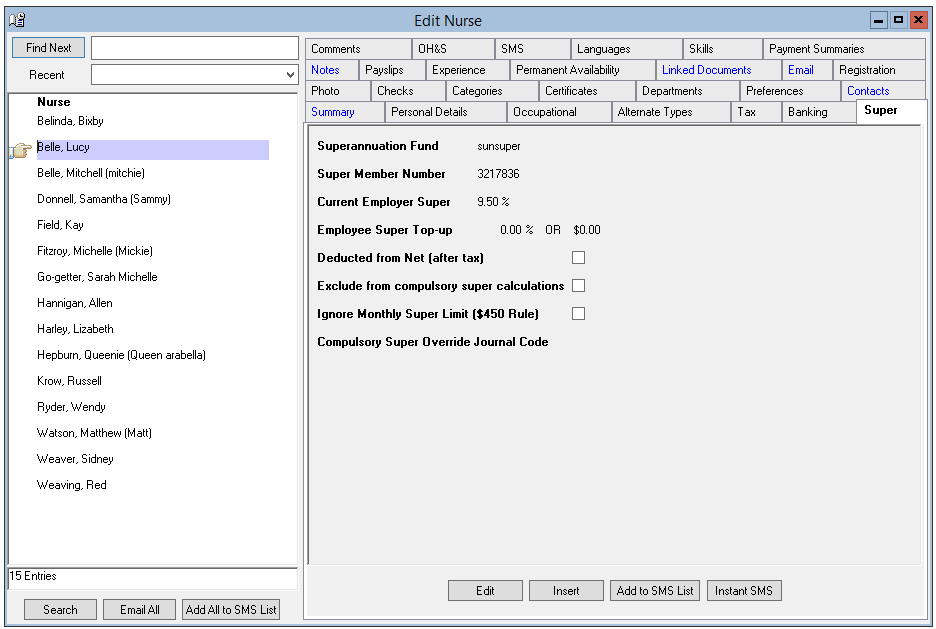
- Superannuation Fund – Select the Superannuation Fund.
- Super Member Number – This is an alphanumeric field. If the Nurse has not provided the superannuation member number enter “Unknown”.
- Current Employee Super – The percentage currently paid for this employee
- Employee Super Top Up -This can be either a percentage of the weekly gross wages or a fixed weekly amount the Nurse elects to pay into their superannuation fund.
- Deduct from Net (after tax) – Tick for the Super to be applied after tax (Co-Contribution) or leave un-ticked for the Super to be deducted before Tax (Salary Sacrifice).
- Exclude from Compulsory Super Contributions – Tick to exclude the Nurse from Employer Compulsory Superannuation Contribution i.e. aged less than 18 or over 70 years.
- Ignore Monthly Super Limit ($450 Rule) – Tick to pay the Employer Compulsory 9% Super Contribution to this Nurse on all payments even if the Nurse earns less than $450 gross per month.
- Compulsory Super Override Journal Code – if different to the generic Journal code set-up under Data Entry > Accounting Configuration
When completed select OK to save.
Venus will ask you to verify (re-enter) the tax, banking and superannuation information to ensure the information is correct.
When a nurse has been successfully created the following Information tabs will be populated –
- Summary
- Personal Details
- Occupational
- Banking
- Tax and
- Superannuation