Nurse > Daily Availability
Nurse availability to work is used by Venus to identify the best available Nurse for a Hospital’s shift requirements in the Single and Multiple Shift Rating screens.
There are two areas to record a Nurse’s availability to work –
- Nurse > Nurse > Permanent Availability – For Nurses with a regular pattern of availability and
- Nurse > Nurse Daily Availability - For Nurses with availability that changes from day to day and week to week.
A Nurse’s availability can be recorded in both areas, however if there is a conflict of data the information on the Nurse Daily Availability screen (shift by shift) will over-ride the Permanent Availability.
So, when Nurses with Permanent Availability recorded are unable to work for a short period of time you do not need to update their permanent availability. Instead you record their changed availability for the required dates in Nurse Daily Availability screen. When the dates with changed availability have passed, the permanent availability will automatically re-activate.
Daily Availability - Shift by Shift
Availability for Nurses who change their availability from day to day and shift to shift should be recorded in the Nurse Daily Availability screen.
The Nurse Daily Availability screen records -
- The shifts a Nurse is available to work day-by-day.
- A Nurse’s preference for Hospital Category for a shift.
- A Nurse’s instructions to be removed from a Hospital Category for a shift.
- Shift specific comments e.g. earliest start time.
You can access the Nurse Summary tab and insert a Note from the button on the screen.
After a Nurse’s availability has been recorded, a right mouse click on a date will display the User who created or last updated the availability and the date and time.
Recording an Availability – Shift by Shift
When the Nurse Daily Availability screen is opened it displays today’s date and the first Nurse in your database -
- Start Date – To change the date, overtype or use the calendar.
- Nurse – To change the Nurse, type the first letter of the surname or scroll through the list.
Inserting an availability date
- Select “Insert” for a new row for the next date or
- A row for the next date will be inserted when you tab past the end of a row.
- Dates can be overtyped.
To insert a number of concurrent dates, hold the tab button down and new rows will be inserted.
Recording Availability for a Shift
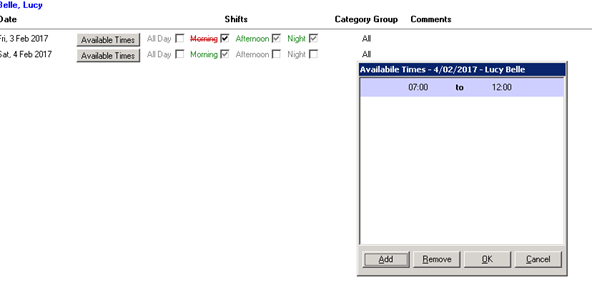
You can record the same availability for all shifts for a day, or for the selected shifts i.e. Morning, Afternoon and Night.
To record a Nurse’s availability, click on the shift type -
- One click inserts a tick and indicates the Nurse is available to work this shift – text is Green
- A double click strikes through the shift and indicates the Nurse does not want to work and text is colour in Red
- A shift with no availability recorded will appear on the rating screen as maybe available.
To record a Nurse’s availability for a time range – click on Available times
- Enter the time range or ranges available, up to three may be included.


Category Group and Group Exclusion
The Category Groups refers to the Hospital Categories.
- The default Category Group is “All” and will include all hospitals for the Nurse in the rating process. Only one Category Group can be selected for a shift.
- The default Category Exclusion is “None”. Only one Category Exclusion can be selected for a shift.
- When a Hospital Category group is selected, the Nurse will ONLY be included in the rating process for shifts for Hospitals in that group.
Comments
The comment recorded here is accessible from the shift rating screens. The comments should relate to the shifts on that date only.
There are five buttons at the bottom of the screen –
- OK – To save and close.
- Next Nurse without Availabilities next week – this will take you to the next nurse, alphabetically, who does not have any availability recorded for the week.
- Make Unset Unavailable – all shifts on all the days displayed that do not have an availability recorded will be set as unavailable.
- Instant SMS – To send a message to the selected Nurse.
- Add to SMS List- Add the Nurse to the SMS Manager.
Updating a Nurse Availability
To update Nurse Availability, select the Nurse and date(s) change the shift availability as required.
Deleting a Nurse Availability
To delete a Nurse’s Availability, highlight the date and select the Delete button.