Nurse > Nurse > Permanent Availability
This tab allows a nurse with regular or permanent patterns of availability to record their availability. Availability is recorded by days of the week and shift type (i.e. all day, morning, afternoon or night) all within a date range.
Shift types can be:
- ticked – available,
- ticked and shift type crossed out – unavailable, or
- un-ticked where the rating engine considers as maybe available and nurse may be rostered on.
Availability may also be inserted based on time ranges (see below).
A nurse may insert multiple availability schedules (e.g. availability may change for a school holiday so the first schedule is until holidays, schedule 2 may be for during the holidays and then a different schedule after the holidays).
The nurse indicated that they are available for a specific shift type for a period of time (as defined by the date range).
Recording Permanent Availability
- Select Insert on the Permanent Availability tab.
- Select the start and end date range. You are not required to enter an end date.
- Day – Select “All” if the availability relates to every day of the week or select specific days.
- Select either Shifts or Available times
- Shift – Select the Shift and then record the availability for that shift, e.g. Morning Shift
- Available = tick,
- Not available = strike through and,
- Maybe = blank.
- Available Times – If times are better suited to the staff member up to three-time ranges mat be selected:
- Click Available times button
- Enter start and end times available (up to three ranges – click insert to add)
- These available time ranges apply to the days selected
- Shift – Select the Shift and then record the availability for that shift, e.g. Morning Shift
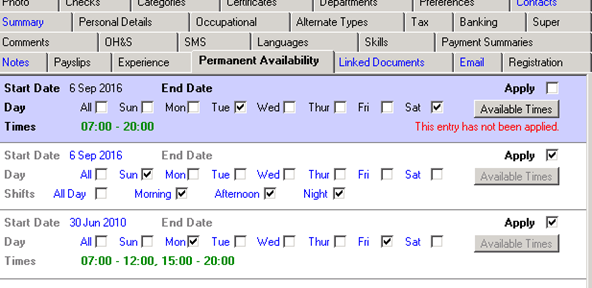
- To apply the availability in Venus, tick the Apply box. If the availability has not been applied, a note in red is displayed.
Permanent Availability – An Example
The following example shows the availability recorded for Nurse who is availability from 07:00 until 20:00 (if apply is ticked) on Saturdays, Sundays they are available for Morning, afternoon and night shifts and Monday and Friday they are available from 07:00 – 12:00 and again from 15:00 - 20:00.
Updating Permanent Availability
To update Permanent Availability –
- Highlight the availability to be updated.
- Remove the “Apply” tick.
- Update the fields as required.
- Re-tick “Apply”.
Deleting Permanent Availability
To delete Permanent Availability –
- Highlight the availability to be deleted
- Select Delete on the Permanent Availability tab.
If a Nurse’s availability varies regularly, you would record it under Nurse > Nurse Daily Availability. See the section on Other Nurse Menu Items for more information.