Please Select Full Screen (press f after pressing play) on the video below for improved video quality:
Quicksign is a tool that allows staff supervisors, on site, to approve the roster as scheduled or to approve alterations to the roster at the point of completion of the roster.
It is a tool accessible through the staff members Venus web and mobile site that allows the supervisor to sign the staff members time sheet directly from the users mobile phone.
Signed rosters can either be automatically set to time sheet approved, or flagged for manual approval if outside of the preset tolerances for stat time, finish time, and length of break.
PREREQUISITE / COREQUISITE:
- Venus Web and Mobile - Client Module
Configuring QuickSign
Quicksign is a additional module that sits within the Venus Web and Mobile package, it can be purchased with the whole Venus Web and Mobile solution, or purchased in retrospect.
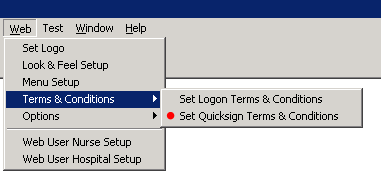
Once purchased, the initial configuration is completed via the below menu items:
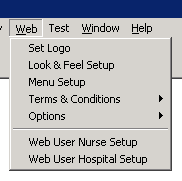
Terms & Conditions
Setting the Quicksign Terms and Conditions allows you to detail the clauses you would like to have accepted prior to the completion of a signature. These can be typed in a basic TXT file and selected for upload. The T&C's present as a prompt screen on the staff members phone than needs to be accepted prior to moving past that screen.
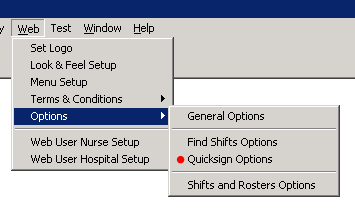
QuickSign Options
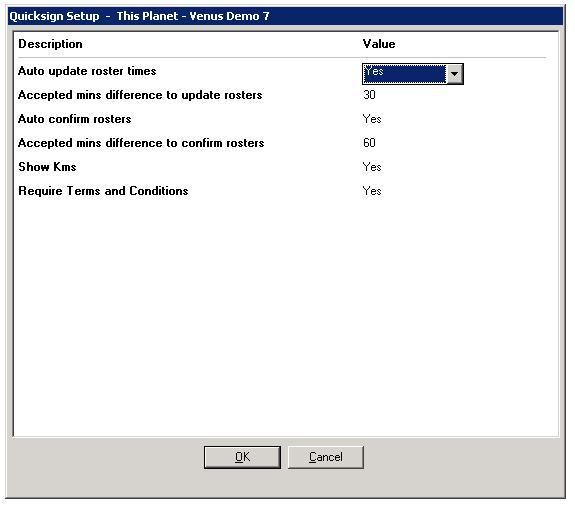
The options for Quicksign allow you to determine what tolerances should be set to allow or disallow automatic roster approval on the roster screen, or to allow or disallow automatic updating of the roster on the roster screen.
- Auto Update Roster Times: If within tolerances, permit the roster to have it's start time, end time, and breaks to be automatically updated in the roster screen.
- Accepted mins difference to update rosters: Sets the tolerance for the above.
- Auto Confirm Rosters: If within tolerances, permit the roster to be timesheet approved upon signature by the supervising time sheet approver.
- Accepted mins difference to confirm rosters: Sets the tolerance for the above.
- Show Klms: Reports back the number of Klms travelled to the roster.
- Require T&Cs: Sets the acceptance of T&Cs (as detailed earlier) as compulsory or not.
From the perspective of the Client
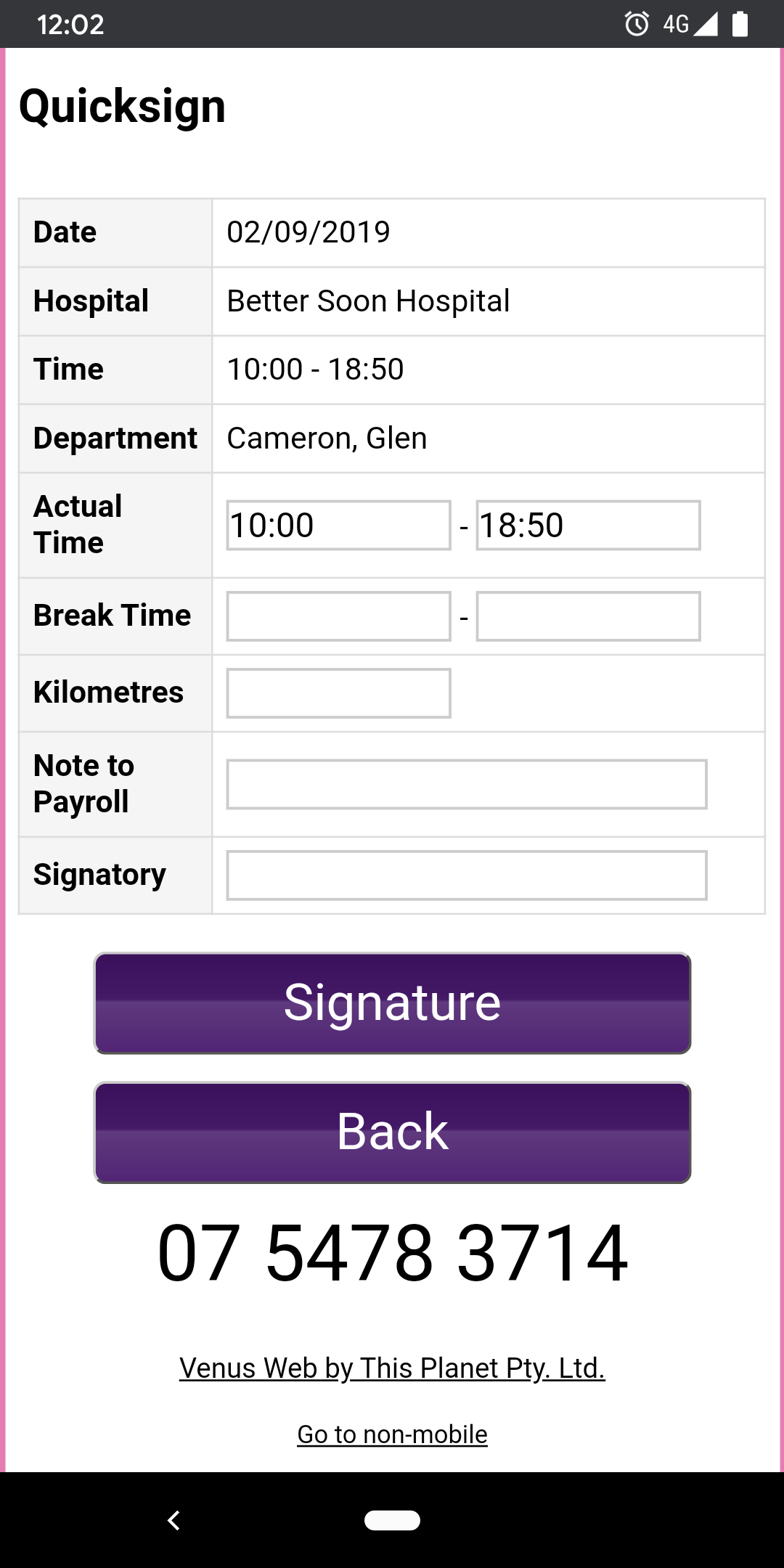
Upon completion of a roster, the staff members mobile phone will be passed to the timesheet approver to enter the actual start and end time, and any other details as required. (Signatory name is compulsory):
Then they will review the T&Cs:

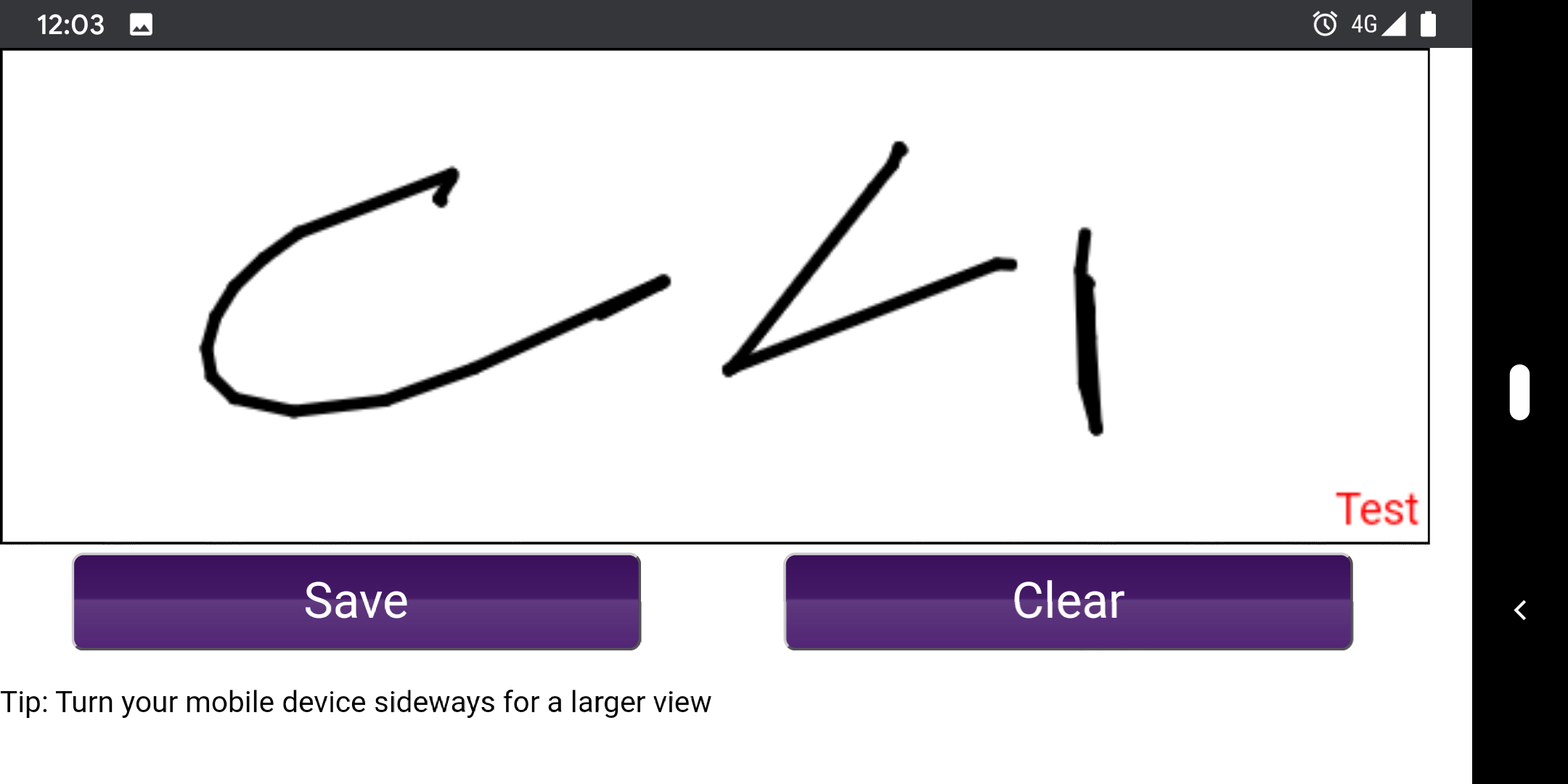
After selecting "I Agree" the approver is able to sign the screen.
From your perspective
You will see the roster screen update immediately dependant on the tolerances you have set.
Below is an example of a roster that falls within all tolerances, you will see that the roster is "Quicksign" approved, and locked from editing

Next is an example of a roster that falls outside of tolerances, you will see that the "Quicksign has turned green, but has not been ticked as approved. This means you need to go into the quicksign card and accept or reject the alterations.

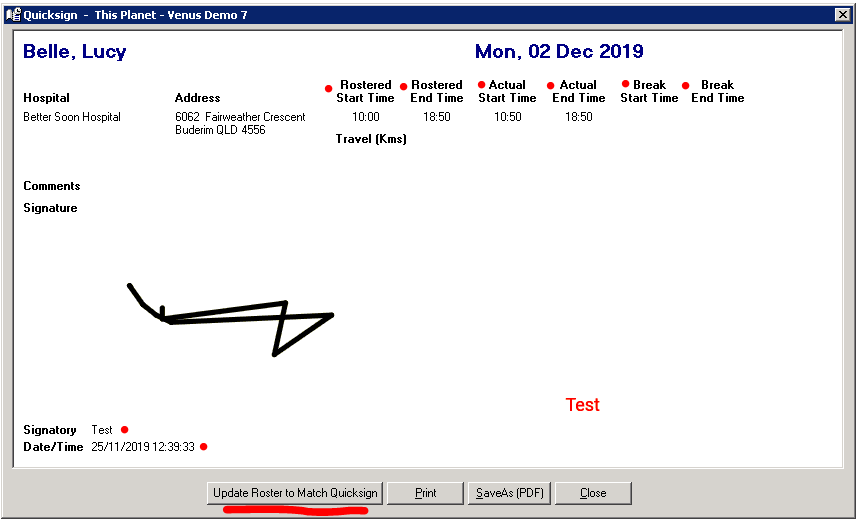
If you come across a roster that is needing validation, you can do so by right clicking on the roster and selecting "QuickSign", you will be presented with a screen that allows you to identify the rostered times and the actual times, who signed the roster and when. You can then choose to update the roster with the new values if you are happy with the changes. Notes can be applied to the roster at the point of signature if you wish to have the client detail reasons for the changes.
REPORTING:
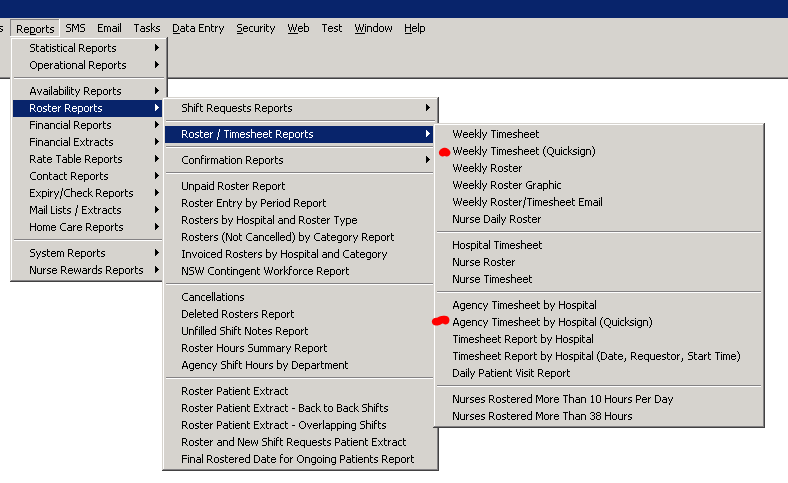
Two reports will receive the image of the signature, one from the staff members perspective and the other from the invoice recipients perspective, either can be emailed to the intenfed recipient from the reports screen: