ShiftMatch is used by a number of Hospitals across Australia to fill their casual rostering requirements.
Venus Bridge to ShiftMatch is an automated polling and bidding process linking your Venus database with the ShiftMatch system.
Increase the number of ShiftMatch shifts filled and improve your market share and profitability with the Venus Bridge to ShiftMatch.
How the Venus Bridge to ShiftMatch works
The Venus Bridge to ShiftMatch is an automated process that runs in the background.
Venus Bridge will poll the ShiftMatch system for available shifts based on the frequency you setup.
When a new shift request is detected in ShiftMatch, Venus Bridge inserts the shift request into Venus where it can be rostered from the Multi-Shift Rating screen.
All ShiftMatch shifts are highlighted in blue on the Multi-Shift Rating screen.
When a ShiftMatch shift is rostered by your team, Venus Bridge notifies ShiftMatch.
You will receive an email to a nominated address confirming if you have been successful or unsuccessful in filling the shift.
If you are unsuccessful in filling the shift, Venus will automatically change the roster to “Cancelled – ShiftMatch”.
When all shifts are polled, any shift requests previously inserted by Venus Bridge that have been filled by other agencies will have their status automatically updated in Venus to “Unfilled – ShiftMatch”.
How to setup Venus Bridge to ShiftMatch
There are 3 parts to the ShiftMatch setup -
- Provider Setup (and Polling Schedule);
- Shift Type Setup
- Hospital, Nurse Type & Department Setup.
Important
When a new shift request is detected on ShiftMatch, Venus Bridge checks the ShiftMatch shift details to make sure it maps to information set up in Venus.
To maximise your ShiftMatch shift success rate, you must set up the provider and polling schedule, shift type, hospital, nurse type and department information correctly.
Venus must match the ShiftMatch shift details with information in Venus for the shift rating, rostering, and payroll and invoicing processes to work correctly.
The Hospital (Provider) Setup records the hospitals you are authorised to poll for shifts. You select how frequently ShiftMatch is polled for new and all shifts for each hospital.
Shift Type Setup maps the start times of ShiftMatch shift requests with shift types in Venus. This is important for matching nurse availability and inserting the correct pay and charge rates.
ShiftMatch shift requests have location, grades and skills. This information must be mapped with the hospital, nurse and department information in Venus.
If Venus cannot match the ShiftMatch shift details with the information recorded under the ShiftMatch setup screens, the shift request will not be recorded.
We recommend you check your Hospital, Nurse Type & Department Setup regularly to ensure you maximise your ShiftMatch shift opportunities.
Provider Setup
ShiftMatch > Provider Setup
The Provider Setup screen maps hospital information in Venus with a provider’s ShiftMatch account and logon details.

To add a Provider -
- Select Insert from the toolbar
- Provider – Select the Venus hospital name that matches the ShiftMatch provider.
- ID – ShiftMatch ID supplied by the provider.
- Username – ShiftMatch username supplied by the provider.
- Password – ShiftMatch password supplied by provider.
To delete a Provider –
- Highlight the provider.
- Select Delete from the toolbar.
Provider Setup also controls the polling schedule for each provider.
The Polling Schedule sets the frequency for Venus Bridge to check ShiftMatch for “new shifts”, and “all shifts”.
All shifts – includes new shifts, and any changes made to existing ShiftMatch shift requests already in Venus. If a ShiftMatch shift has been filled by another agency, the shift request status in Venus will be changed to “Unfilled – ShiftMatch”.
Important: ShiftMatch has set a limit for polling All Shifts at every 5 minutes.
New shifts – You can poll for new shifts as often as you choose. Remember ShiftMatch charges each time you poll.
You control how frequently ShiftMatch is polled for new or all Shifts at different times of the day and on different days of the week.
You can modify the polling schedule to –
- Manage ShiftMatch costs
- Reflect changes in peak shift request times over a day, and the week.
To set the polling schedule –
- Double click on the provider or right click the provider and select Polling Schedule to open the Polling Schedule window.
- Click the Add button to add a new line to the schedule
- Select the day and enter the start and end times and frequencies to poll for all shifts and new shifts. You can have multiple entries for each day to reflect different shift request volumes across the day.
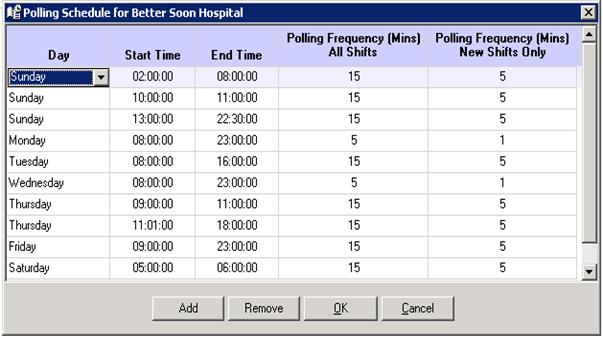
Important: ShiftMatch charges you a fee every time it is polled. You can change the polling frequencies at any time.
Shift Type Setup
ShiftMatch > Shift Type Setup
The next step in setting up the Venus Bridge to ShiftMatch is to map ShiftMatch shift start times with Venus shift types.
When a shift request is received from ShiftMatch, it has a start and end time. It does not have a Venus shift type. Venus needs to allocate a shift type to each shift request received from ShiftMatch to be able to store it in the system.
Example: If a shift request from ShiftMatch has a start time of 18:00 on a Wednesday, it would be mapped to a Venus shift type of afternoon.
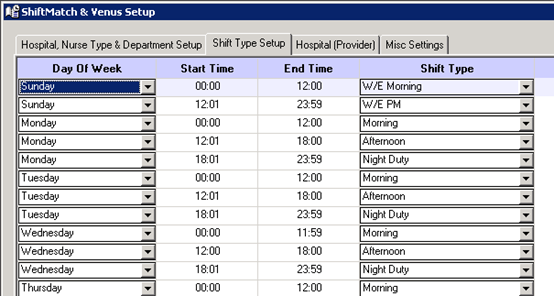
To map start times with shift types –
- Select Insert from the tool bar to insert a new shift type mapping.
- Day of Week – Enter the day of the week the mapping applies to.
- Start & End Times – Enter the ShiftMatch shift start and end time range to be mapped to the Venus shift type.
- Shift Type – Select the shift type that will be used for the entered values.
To delete a shift type mapping –
- Highlight the row to be deleted.
- Select Delete from the toolbar.
Important: Check there are no gaps in the week to ensure all possible shift requests are recorded in Venus.
Hospital, Nurse Type & Department Setup
ShiftMatch > Hospital, Nurse Type & Department Setup
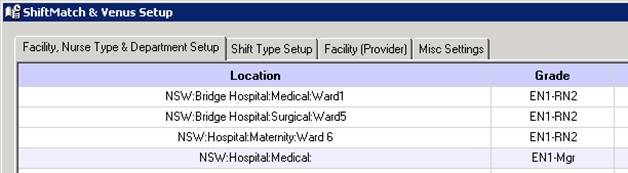
When a shift request is received from ShiftMatch it has a location, grade and skills. This information needs to be mapped against Venus hospitals, nurse types and departments so that Venus Bridge can insert the new shift request in Venus.
Venus looks for a match between ShiftMatch’s location, grades and skills and Venus’ hospital, nurse types and departments. When a match is found, the shift request is inserted in Multi-Shift Request and Rating screens.
If the ShiftMatch shift details do not match the information in Venus, the shift request cannot be inserted.
The ShiftMatch details (location, grade, skills) are inserted in the Hospital, Nurse Type & Department Setup screen. You will need to map these details to the information in Venus.
An entry must be created for each combination to ensure you do not miss any shift opportunities.
To map the hospital, nurse type and department details, use the drop-down lists on the right half of the Hospital, Nurse Type & Department Setup screen to match the corresponding location, grade and skills on the left half of the screen.
Full screen

Left half
Right half
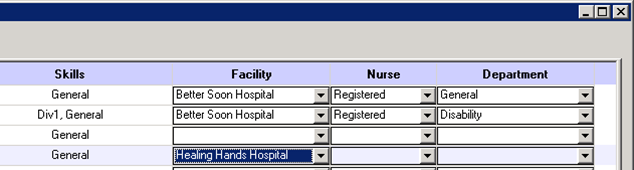
Important: When the Hospital, Nurse Type & Department Setup screen is opened, only unmapped items are displayed to make it easier to identify gaps in your information. Select “Show All” to see all entries.
Important: We recommend you check this screen regularly to ensure you are receiving all possible shift requests from ShiftMatch.