Funding is a core component of the Home Care Module and is an optional module.
Note: For the Purposes of this manual the terminology refers to the Venus defaults for Nurses, Hospitals and Patients, these can of course be amended via the data entry section by your system administrator and as such it is not possible to list all possible variants.
Relationships
The centre of the Funding Module is the Patient. The following is an overview of the relationship between the core components.
A Patient may be linked to any number of Facilities (hospitals, Agencies etc.). A Patient may have any number of funding programs associated with them. A Patient is linked to various Patient Services (Cares) and these need to be present to create the funding plan.
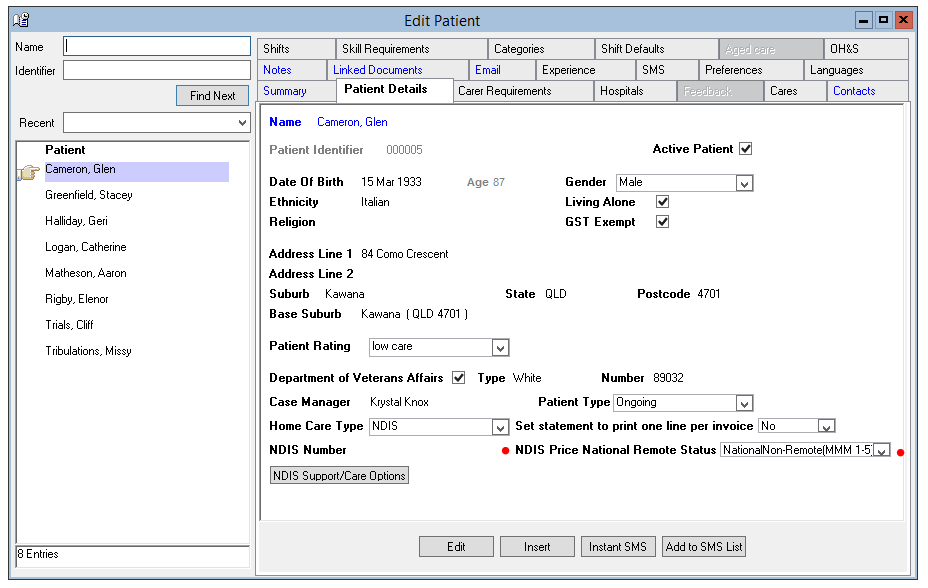
ADDITION 2020 Release: Remoteness
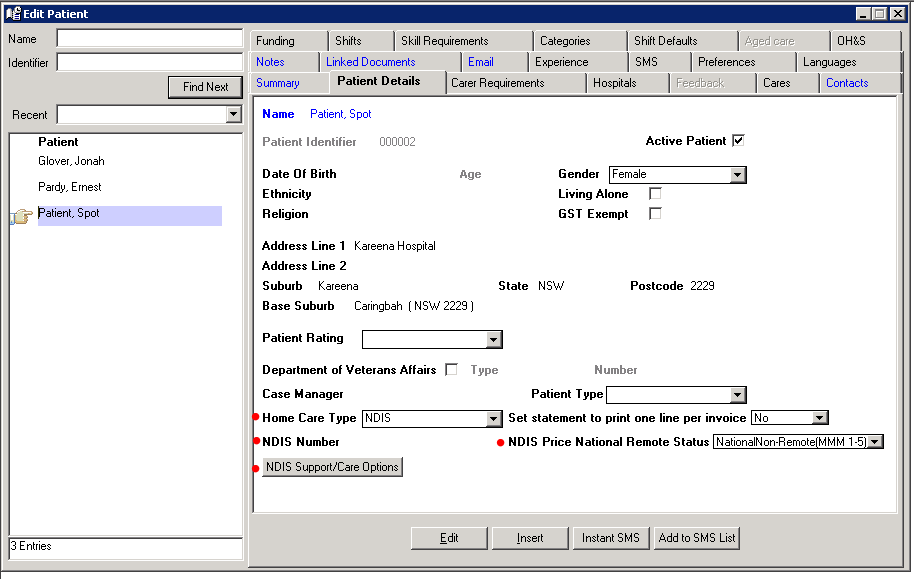
NDIA have introduced scaled pricing dependant on the remoteness of the patient. to set the remoteness you can do so against the Patient Details Tab as shown below:
Parameters and Setup
Data Entry > Home Care
There following Data items must be input to manage Home care components of the Venus Solution.
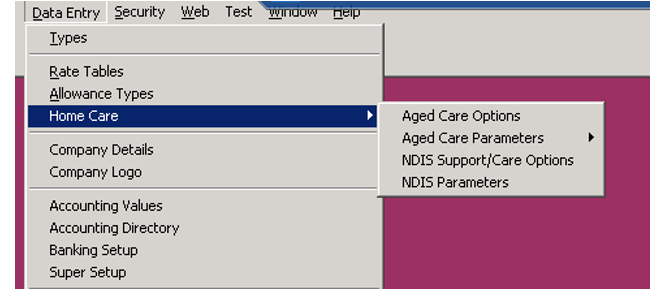
Date Entry > Home Care > Aged Care Parameters
This is the section where the aged care rates (as published) are held. These can be amended if required.
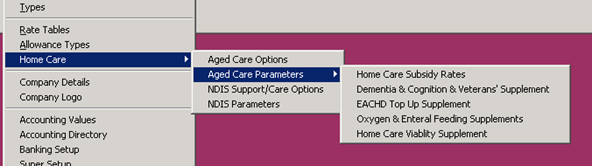
These rates may be amended in this section. These rates are to be used for the auto generation of funding added to the plans for aged pare patients.
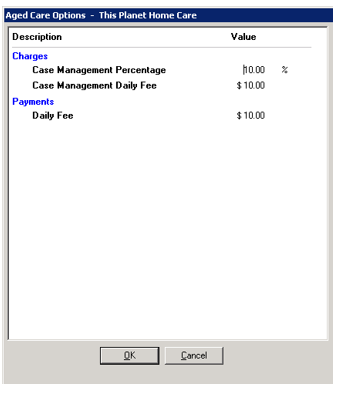
Date Entry > Home Care > Aged Care Options
This area allows for the setting of the Aged Care Specific global parameters for Auto Fund Generation. These items are separated into two types: Charges and Payments.
Charges, these will be shown as expenses on the Patients statement and budgets and will reduce the balance in the Plan. These would typically be used as a Case management fee or admin Fee that your agency is billing the plan. They may be set by a Dollar value or a percentage of the funding. They are not mutually exclusive.
Payments: Are seen as income to the plan. A Patient may be required to pay in a Basic Daily Fee. This is only set as a Daily dollar value.
These are global values set for the agency but may be overridden at a patient level if their plan has been negotiated at a different value.
Date Entry > Home Care > NDIS Support/Care options
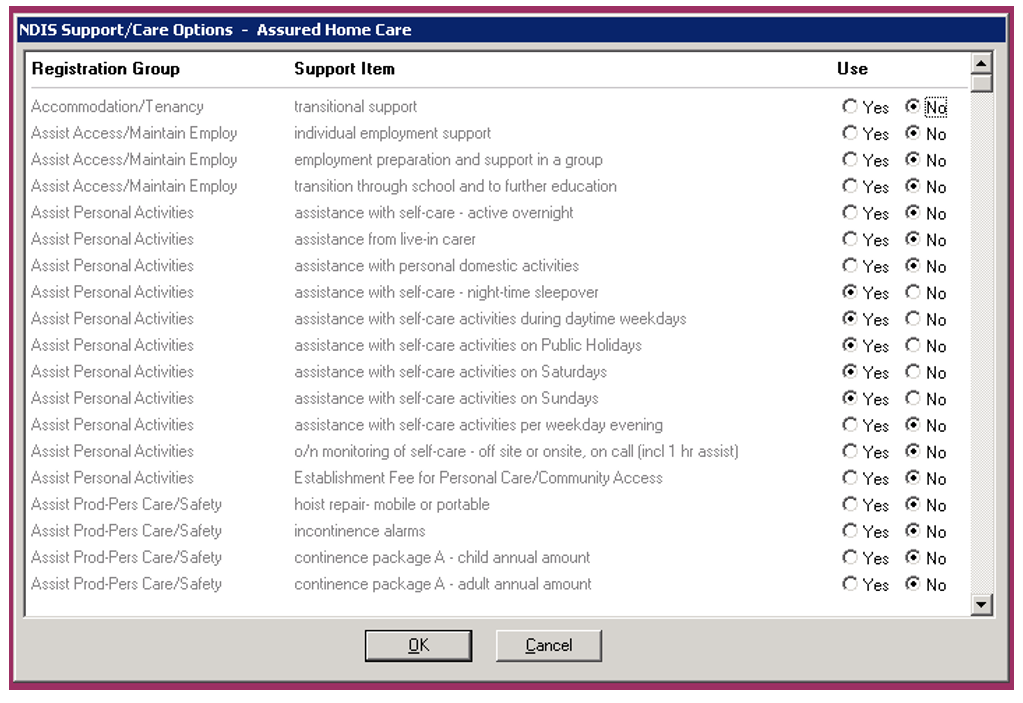
The NDIA publishes a list of All the Support/Care options that your agency may claim against. The important Care Support Number is critical in the upload of the payment file to the NDIA.
What this section allows you to do is select only the Options that your agency provides. This ensures that when selecting the options specific to a patient, it is a smaller list and only the options that you provide. The default is set to No as in your agency does not supply that support option.
Data Entry > Home Care > NDIS Parameters
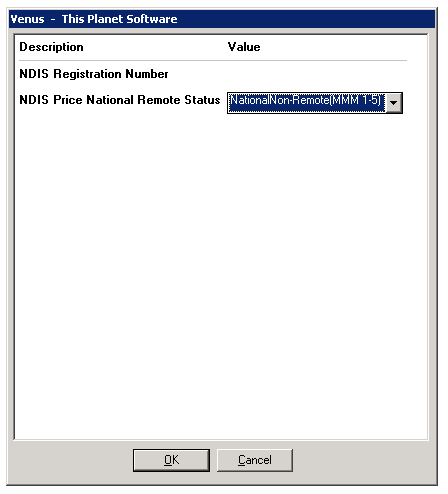
You must enter your NDIS registration number here – this is used in creating the payment file for the NDIA. You should also select your default "Remoteness" setting here (individual patient remoteness can be entered against the patient screen to over ride this default on a case by case scenario).
Patient Setup
Patient > Patient Detail
There are new fields and Tabs in the under patient. The first is in the Patient Details section where we nominate if a patient is an Aged Care patient, an NDIS patient or neither.
In addition, you may select whether statements and budgets should consolidate invoices into a single line or have them itemise the detail within the invoices. This only pertains to the Funding statements and budgets.
The screen below is where you will need to detail:
- Override Remoteness (if not using the global default)
- NDIS Number
- Home Care Type
- NDIS Services relevant to the specific patient
Aged Care Patient
If Aged Care a new Tab within Patients becomes active and the following items can be set.
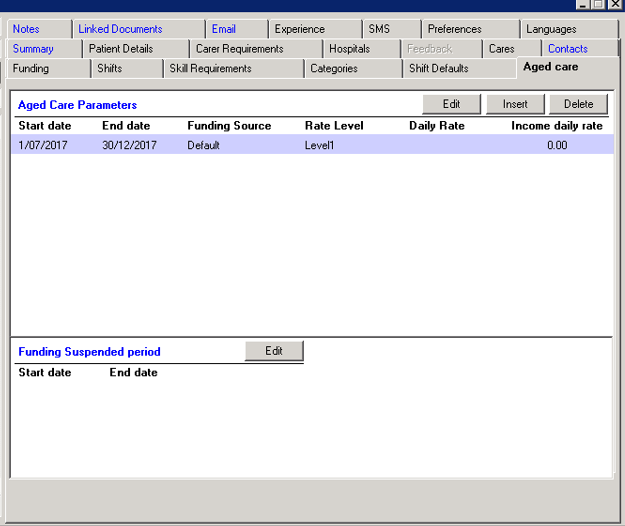
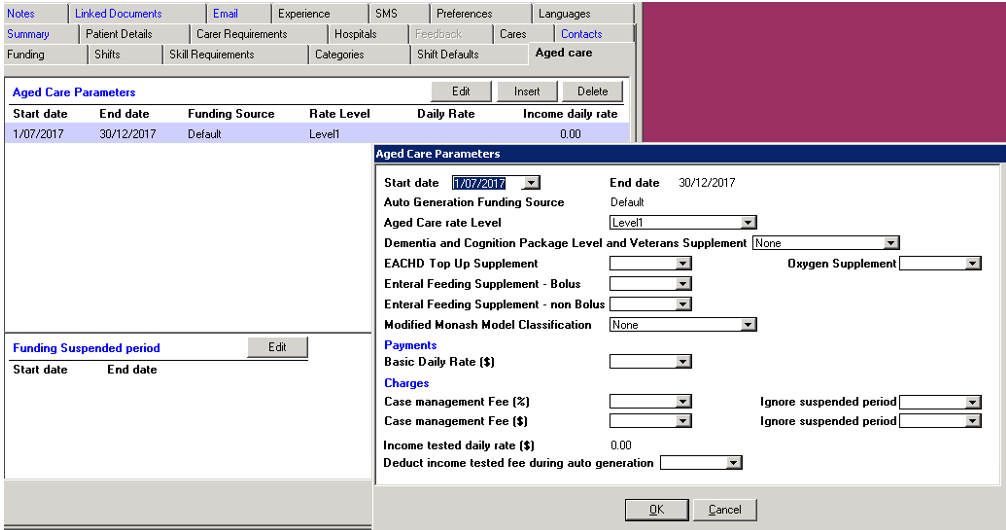
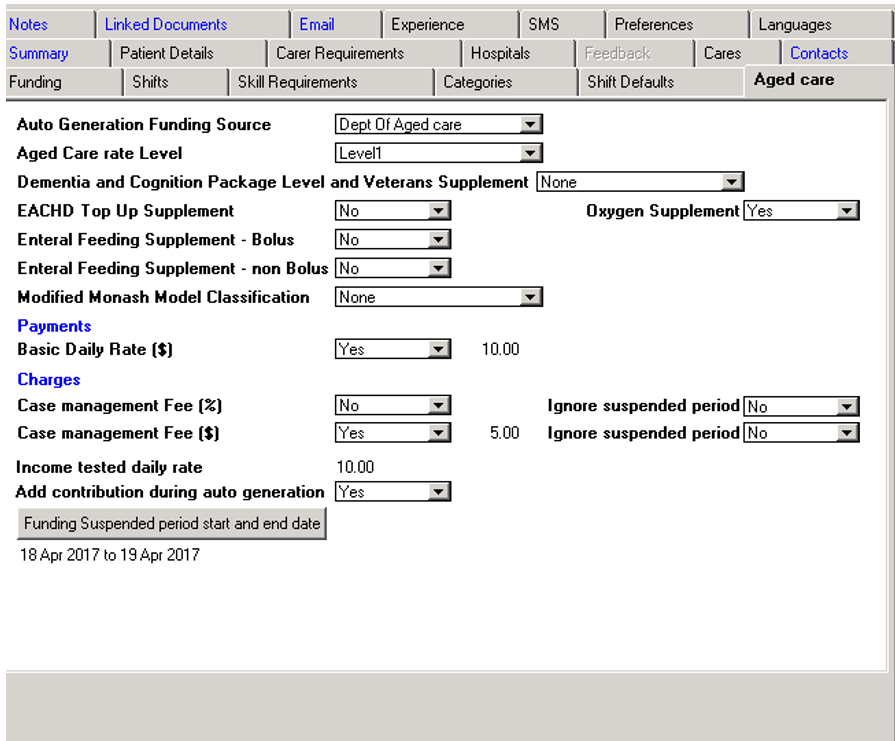
In the first screen you are able to insert, edit or delete aged care parameters for the patient. There can be more than one set of parameters and there are split by date ranges. This allows for changes in specific funding and charge rates during the course of a program. See below for detail.
In the first screen, we can add periods when a patient’s funding may be suspended. From time to time a patient may be admitted to hospital or similar where Aged Care funding to the agency (as well as service should be suspended. This section allows the agency to enter any such periods. Funding Suspended period start and end date (default blank) – allow multiple records e.g.:
- 10/1/2017 – 13/1-2017
- 2/2/2017 – 10/2/2017
- Etc.
If we select to insert/change/delete any of the Aged Care parameters, a separate pop up screen appears. The detail is as follows:
- Start and end dates. If this is the first range for a program the start date defaults to the start date of the program. If it is a subsequent range, the start date defaults to the end date of the previous range + 1 day. The end date cannot be past the end date of the funding program. NOTE: the date ranges are user controlled and is a fund generation function is initiated and a date range is absent NO FUNDS WILL BE GENERATED.
- Auto Generation Funding Source. This is the Funding Source that is set on the Funding program. This is not amendable here as only one program can have funds generated (these are set in under the funding Tab where all programs are setup.
- Aged Care rate Level – drop-down list from Rate table (Home Care Subsidy Rates)
- Supplementary funding. When the patient receives additional funding, which are to be used in the Auto Generation of Funding, these are indicated here.
- Dementia and Cognition Package Level and Veterans Supplement - drop-down list from Rate table (Home Care Subsidy Rates) plus first option to be none (default)
- EACHD Top Up Supplement Y/N (default N)
- Oxygen Supplement Y/N (default N)
- Enteral Feeding Supplement – Bolus Y/N (default N)
- Enteral Feeding Supplement – non-Bolus Y/N (default N)
- Modified Monash Model Classification – drop-down with same entries from rate table PLUS default option of None.
- Payments. If the Patient is to pay an additional daily fee, this is indicated here. It is a daily rate and when funds are auto generated it will take the number of days and add an amount to the program. The default is taken from the agency global setting but can be overwritten in a patient by patient basis
- Charges, if your agency charges a case management or administration fee this is indicated here. Either a percentage or daily rate can be listed. The default is taken from the agency global setting but can be overwritten in a patient by patient basis. Each of the charges has an option to “Ignore funding suspended period”. If set to Yes then the charges will still be applied regardless if the patient is suspended from funding.
- Income tested daily rate $0 - $9999.99 (default $0). This amount may not exceed the total daily rate in the rate table for the rate level selected above. When auto generation of funds occurs, this amount is considered and if greater than zero the Aged care rate level is reduced by this amount and a separate line on the statement and budget is created.
NDIS Patient
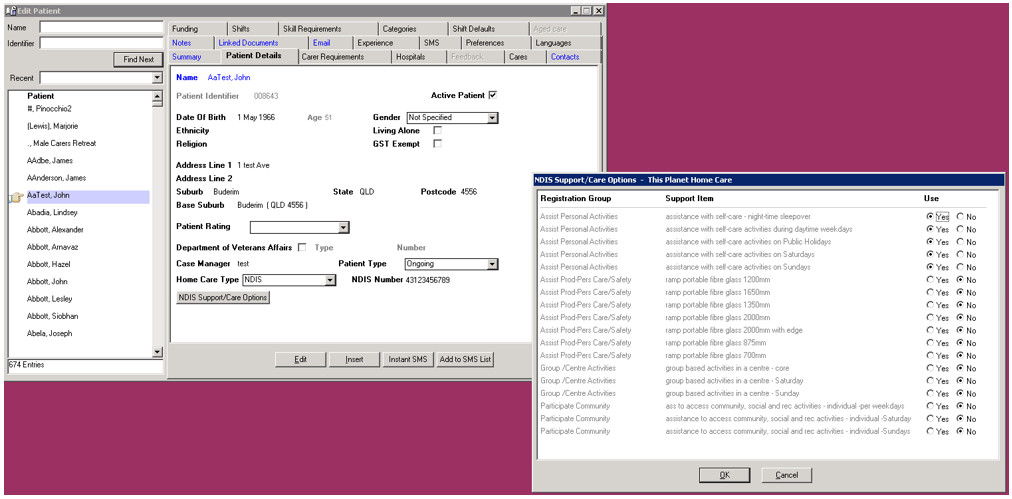
If a patient is set as an NDIS patient, a field is available to enter the NDIS registration number of the patient. In line with the NDIA rules this number must start with 43.
At this point the patients Support/Care options must be set. Selecting the NDIA Support/Care Options opens another window. Here we are presented with all the Support/Care Options that the Agency has indicated that it provides. The default is no for all and the care items that the patient is to be provided must be selected here.
These will be used when rostering as each roster must be linked to a Support/Care Item to enable payment claiming.
Patient Care Plans and Funding
Care programs and plans may now be captured for patients. Each patient may have multiple concurrent programs. The Patient module is a pre-requisite for the Funding module. The funding programs are not directly linked to invoicing at present. All funds and expenses captured are for managing the program only. In order for items to be included in invoicing they must be incorporated in rosters (charges, allowances etc.).
There are a number of steps to be completed to utilise Patient Funding, these are:
- Funding Sources must be set up in Data Entry > Types > Funding Sources. Refer to Data Entry section of this manual.
- Service Types must be captured Data Entry > Types > Patient Services. These are also used for patient cares/ Services.
- Funding Detail to be captured against each patient (see below in this section), and
- Funding must be linked to each roster to enable tracking and management (see below in this section)
Patient > Funding
A Funding Program (or multiple) may be created for patients. This allows for the tracking of total funds, allocated as well as used and unused funds.
Select Insert to add a program or double click on an existing program to edit.
This is linked to rosters for funds utilisation. The following information is required:
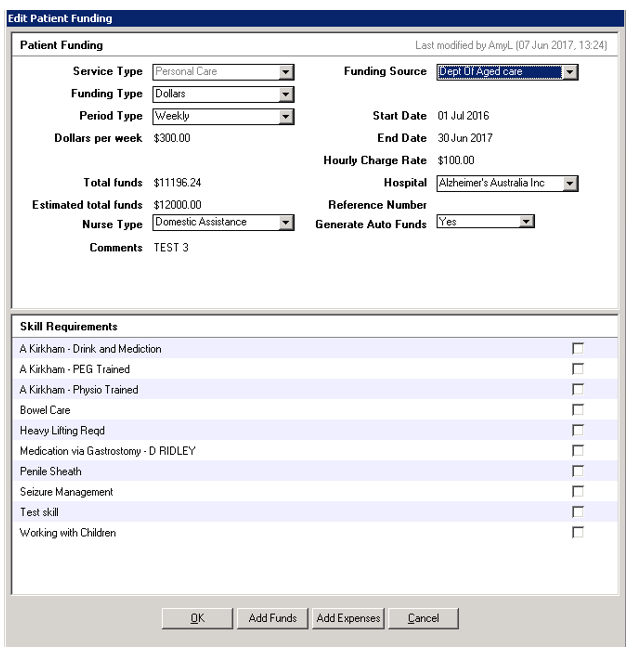
- Service Type (drop-down menu – see data entry). This describes the service to be provided in terms of this funding.
- Funding Source (drop-down menu – see data entry). This is the primary organisation providing the funding for this program. Alternate funders may be captured with each funding tranche.
- Funding Type may be in Hours or Dollars. Note: This information is utilised when linking a roster to a funding program. The total (hours or dollars) per period is checked with the roster being linked and if exceeded issues a warning.
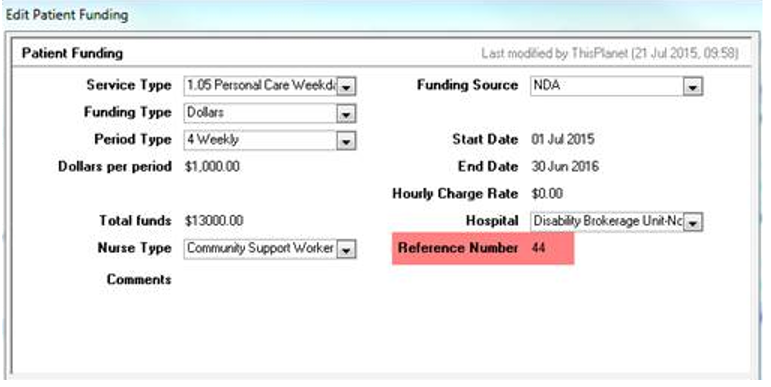
- If Hours are selected, the plan is defined by period type (weekly, fortnight, etc.), hours per period, total hours for the plan, total funds and Hourly charge rate (this rate is not used in the roster process). Start and end date for the plan to be added – no rosters may be allocated to this funding plan outside of this range. The hospital (agency) is linked to the funding plan (hospital must be allocated to the patient). Support worker type must be added from drop-down list. A funding reference number may be added and is important if you want to run invoices by funding reference. Comments bay be added at this point. Edit checks include (warning only):
- If Dollars are selected, the plan is defined Period Type and Dollars per period. The hourly charge rate entered (this rate is not used in the roster process). Start and end date for the plan to be added – no rosters may be allocated to this funding plan outside of this range. The hospital (agency) is linked to the funding plan (hospital must be allocated to the patient). Support worker type must be added from drop-down list. A funding reference number may be added and is important if you want to run invoices by funding reference Comments bay be added at this point.
- Total Funds, this is a calculated field and is the summation of all funds captured against the program. See section below on adding funds.
- Estimated total Funds. This is an indicative amount only and used on the Forecast section of the Statement. It is the total amount that you may expect to receive over the lifetime of the Care plan/program.
- Nurse type is selected from a drop-down menu.
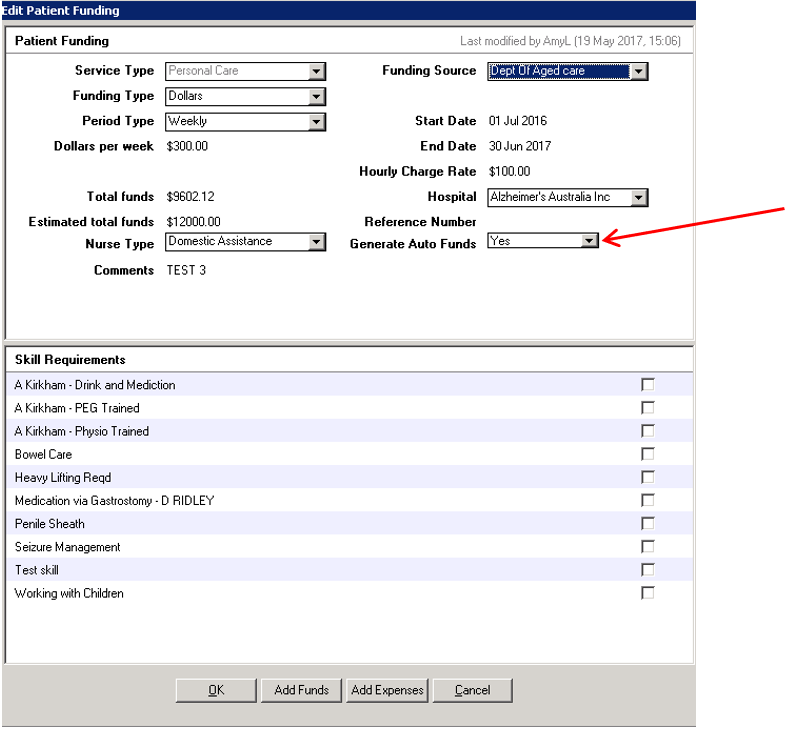
- Enable Auto generation of funding Y/N (default N). If set to "no” this patient will be ignored in the auto generation of funds process (see auto generation of funds). This field is only really applicable to Aged care patients.
Add Funds or Expenses
Manual
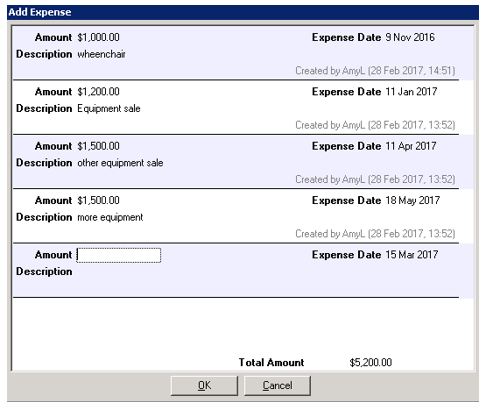
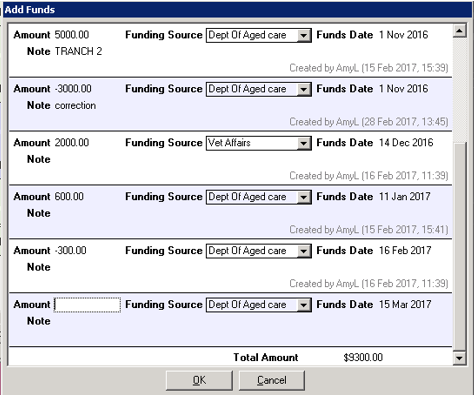
Funds are essentially funds received from the Primary Program funder or an alternate (e.g. patient funding). Expenses are capital items (e.g. Zimmer Frame) or External Services that may be acquired on behalf of the patient. Both of these can be captured as future items for forecast and budgeting purposes. They may include negative amounts if required.
Auto Generation of Funding
This Applies to Aged Care patients only.
Upload Funding Function
Under Accounts add a new section called Generate Aged Care Funding.
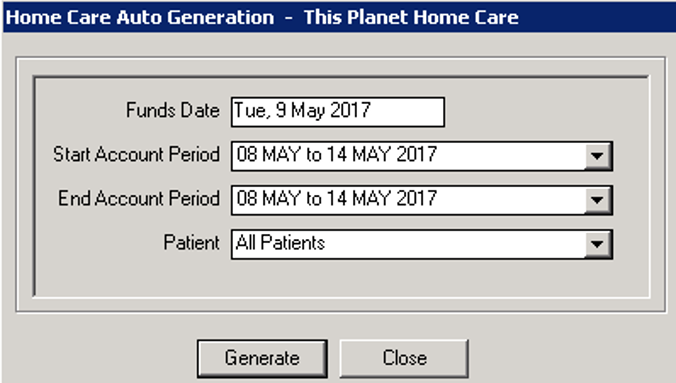
When selected, a start and end Account period (may be the same if only one accounting period is to be selected) must be entered. A single or all patients may be selected. A funds date may be entered (default is today). This funds date will appear in the funding tab as well as statements and budgets. This is also the date that will determine the statement period.
Note: Funds Auto generated will appear on statements according to the actual date that they represent and not the Funds date.
Only the following patients will be selected:
- Patient is active
- Patient is an NDIS patient
- Patient has Auto generation of Funding set to Y
- Patient has not had funding added for any of the accounting periods previously. If a patient has had funds auto generated the system will display a warning. Funds cannot be duplicated.
- As a patient may have more than one funding program, the program that receives the funding must be selected (only one can be selected to receive funds). The Auto Generate Funds (see below) must be set to yes. Funds default to no so one must be set on. If another is set to yes, an error will be presented.
New funding record/s is to be generated with the following criteria and calculations:
- Funding Source from patient record (Auto Generation Funding Source)
- Funding records are created as follows:
- The number of days for the selected period is calculated
- Number of days from start to end of selected account periods
- This is compared to the start and end date of the plan and if either the start or end dates occur within the selected account period the number of days is varied accordingly. Note; You cannot generate funds for dates outside the start and end date of a patient funding plan.
- The funding suspended dates are checked and if and days are suspended within the selected account periods these are removed from the total days for the plan.
- The Aged care rate is looked up based on the Aged Care level rate recorded on the patient record.
- If the Income tested rate for the patient is greater than zero then the Aged Care level rate is adjusted by this amount and a funding record is created by multiplying the adjusted amount multiplied by the number of days calculated above. The funding item is identified as “Funding instalment – Aged care Sub. dd/mm/yyyy – dd/mm/yyyy”. You can also set the Income Tested daily fee so that it does not automatically generate in the auto generating function.
- If the Aged Care “Deduct income tested fee during auto generation” is set to yes than another record is generated which takes the Income tested daily rate multiplied by the days calculated above. This line item is identified as “Funding Instalment – Income tested Fee dd/mm/yyyy- dd/mm/yyyy”. If the amount is set to No then the system assumes that the agency will manually add this amount when they have received the funds form the patient.
- If any of the Supplementary rates (EACHD, Oxygen, etc.) are set to yes (or a level selected) then the rates are taken from the parameter table loaded in the Data Entry section and accumulated and multiplied by the number of days calculated above and a funding record is created. The funding item is identified as “Funding instalment – Aged care Sup. dd/mm/yyyy – dd/mm/yyyy”
- If the basic Daily rate ($) is set to yes and the amount is > zero (default is the company global amount set in the data entry section but can be overridden at patient level) then the amount here is multiplied by the days calculated above and a funding record is generated and is identified as “Funding Instalment – Daily Fee dd/yy/mmmm – dd/yy/mmmm.
- If the Case management Fee ($) is set to yes and the amount is > zero (default is the company global amount set in the data entry section but can be overridden at patient level) then the amount here is multiplied by the days calculated above and an expense record is generated and is identified as “Funding Expense – Case Management Fee dd/yy/mmmm – dd/yy/mmmm.
- If the Case management Fee (%) is set to yes and the percentage is > zero (default is the company global amount set in the data entry section but can be overridden at patient level) then the indicated percentage of the total funds generated above (including the income tested fee regardless of the indictor setting) is calculated and an expense record is generated and is identified as “Funding Expense – Case Management % Fee dd/yy/mmmm – dd/yy/mmmm.
- The system can be set to ignore suspended case management fees (both $ and %) if requires. This will mean that the Case management fee will be generated regardless of a suspended period been applicable.
- The number of days for the selected period is calculated
Funding Statement
Patient > Funding > Display Statement
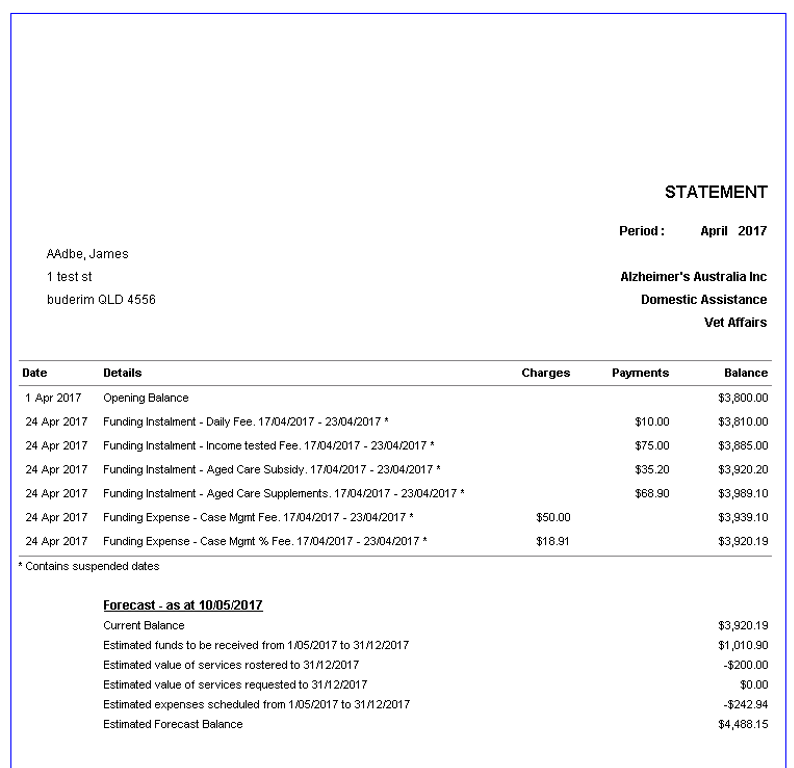
Statements displayed from this section are for an individual program and only for the month immediately prior to current month. If you require statements for all patients and a different month please refer to section Reports > Financial Reports > Funding Statement
A Statement is made up of the following components:
- Period: This is the calendar month for the statement. If run from the patients’ section it will be for the month immediately prior to current month. Other months (cannot be in the future) can be selected if run from the financial reports section.
- Header: Patient and program summary details are displayed
- Opening balance: This is an accumulation of all transactions prior to the 1st of the statement month
- Statement details: In this section we include all transaction details from the statement month, in the example below it includes:
- Funding Instalment – all funding received in this month is itemised.
- Funding Expense – All Expensed incurred in the statement month are itemised
- Invoices – All invoices generated in this month are listed
- Rosters and Shift requests – all rosters for the statement month, not invoiced will be itemised. Shift requests cannot appear as they would have been flagged as unfilled by the system
- Balance – this is a running total for the statement.
- Note: Funds Auto generated will appear on statements according to the actual date that they represent and not the Funds date.
- In the forecast section in the lower part of the page, it shows a summary of all transactions that are scheduled after the end of the statement month, these include:
- In the heading an “As At” date is included which shows the statement creation date. This will be of assistance if a second statement is generated at a point in the future and items like rosters have changed in the interim – these will of course change the statements.
- Current balance – this is the closing balance from the statement month
- Estimated funds to be received – this displays the 1st of the month following the statement month with the end date the end of the program. This is a calculation of the estimated Total Funds (captured in the program summary) less all funds received up to the last day of the statement month. It is fair to assume that these funds are still to be received. Note; Because this is used here it may cause discrepancies if compared to the budget as this is not taken into account in the budget i.e. only funds captured are considered in the budget.
- Estimated value of services rostered – this is a total of all the rosters rostered from the 1st day of the month following the statement month to the end of the program.
- Estimated value of services requested – this is a total of all the shifts requested but not rostered/allocated from the 1st day of the month following the statement month to the end of the program.
- Estimated expenses – this is the total of all expenses listed after the statement month
- It ends with an estimated forecast balance.
- The section at the bottom may include a text section which is set up in Data Entry > Messages
- If any of the line items in the statement have been altered as a result of a Suspended period – they will be marked by an asterisk.
Funding Budgets
Patient > Funding > Display Budget
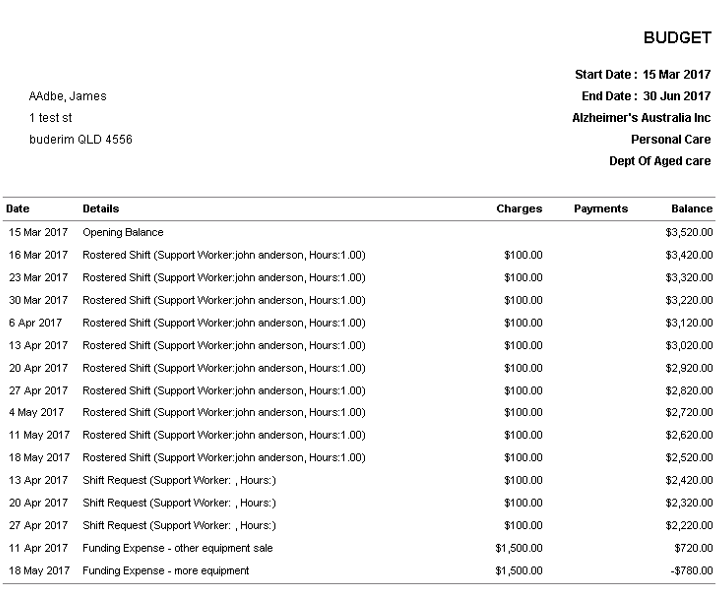
A budget is essentially a forward-looking tool to ascertain funding surplus or deficit.
A budget is made up of a number of components and these are as follows:
- Start and End Date. The Start date is the selected start date of the report. The date selected must fall within the start and end date of the program. The end date is always the end date of the program
- The heading includes the basic information for the program including patient name, hospital, care type and primary funder.
- Opening balance. If the start date of the budget is the same as the start date of the program – the opening balance will be zero. In the case where the start date of the budget is after the start of the program, the opening balance includes all program transactions prior to the start date.
- Transactions listed:
- Invoices – All invoices generated from start date of budget for this program. Referring to the example below, the program start date is 1 July 2016 and the budget start date is 15 Mar 2017. Al shifts invoiced prior to this date have been included in the opening balance. No invoices are shown as the start date was the same as current date in this example.
- Rostered shifts. Next is a list of all shifts rostered and linked to this program. It includes the nurse/ support worker and the hours for the shift. These have not been invoiced as at date of budget.
- Shift Requests. This is a list of all shifts requested and not yet allocated. As they are not yet allocated we use the hourly rate on the program summary page multiplied by the hours to get an indicative value.
- Funding Expense. This is a list of all expenses scheduled after the budget start date. Expenses incurred prior to the budget start date are included in the opening balance.
- Balance. This is a running total of the Program’s financial status. In the example attached we can see there is a shortfall of $780 which can be rectified by including more funding or reducing budgeted services.
Funding on Rosters
The rostering process (see separate section in this manual) has not changed unless there is a funding plan captured for a patient. Note: On some screens the patient may be listed under department due to real estate constraints on the screen.
The funding rules for Single and Multi-Shift Requests and Ratings are essentially the same. Each shift needs to be linked to a patient Service for the funding to be attached to the funding plan and to carry the relevant information through to invoicing.
Funding - Single Shift Rating
Select the hospital name, Support worker type, Shift Date and Type, they start and end time and requestor. The Patient Name must be added to the field names department. Skills can be updated at this point. Enter the rate availability button and select an appropriate Nurse for the shift and enter Asses Selected. Regular warnings (see rating section of this manual) if required. When happy with these select Roster. The Insert Roster screen is presented.
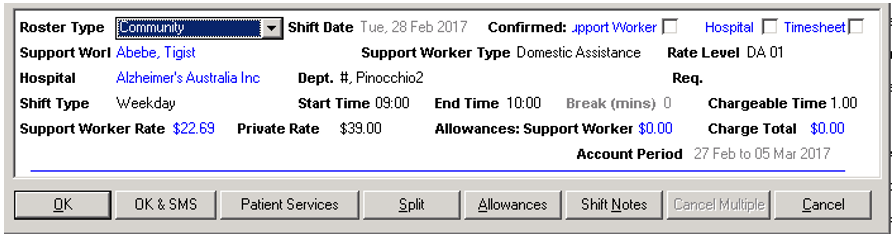
At this point you should select “Patient Services” which allows you to select the services and Link the roster to a funding plan. If you miss this and a funding plan is in place the system will issue a warning saying the patient has a funding plan available – would you like to use it.
When you select OK, the system will check that the shift falls within the parameters of the funding plan (number of shifts per period, amount allocated, etc.) as well as the Home Care Type being set to either Aged Care. If the roster falls outside of the funding parameters, the system issues a warning. The system will allow an override and proceed. The total hours or dollars (depending on the set up) are checked per period to ensure that this roster does not exceed the funding program.
When we select a Patient Service for a shift, if the patient is an NDIS patient and a patient service is selected, immediately after selection another window (similar to below) appears with the list of NDIS Support Items for this patient. Allow for one to be selected and store with the roster. This second selection does not appear with the Aged Care patients. See below for the comparison rules #.
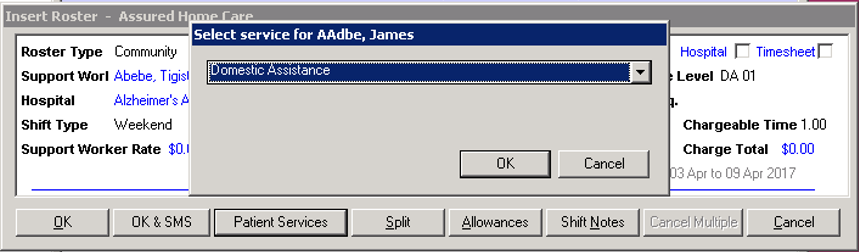
The Roster is created and the funding plan is updated with the relevant details. Note the rate used for the roster is from either the rate table or the amount entered into the shift request at this stage. The amount in the funding plan is not used in the roster process.
# Comparison Rules
Parameters
- If Fund type = hours
- If period = weekly
- Summation hour rostered for the week (Monday 00:01 – Sunday 23:59), add the hours for this shift and check if > Hours per week
- If period = fortnightly
- Summation hour rostered for the week (Monday 00:00 AM – Sunday 24:00 PM as well as previous week and following week. Add the hours for this shift to the current week and then ensure that either current week plus last week OR current week plus next week do not exceed maximum.
- If period = 4 Weekly
- Summation hour rostered for the week (Monday 00:00 AM – Sunday 24:00 PM as well 3 weeks prior and 3 weeks after. Add the hours for this shift to the current week and then ensure that either current week plus prior 3 weeks OR current week plus next 3 weeks do not exceed maximum.
- If period = monthly
- Summation hour rostered for the calendar month (First 00:00 AM – 28th,29th,30th or 31st 24:00 PM), add the hours for this shift and check if > Hours per month
- If period = date range
- Summation hour rostered for the entire program, add the hours for this shift and check if > Hours per period
- If period = weekly
- If Fund type = dollars
- The same as for the hours BUT use the charge rate - chargeable hours * charge rate on roster
Funding - Multi-Shift Request and rating
Multi-Shift requests and set up in the same manner as previously (see request section in this manual). For the purposes of funding it is important to enter the patient name (under Department) Patient Service – this is what links the roster to the funding plan.
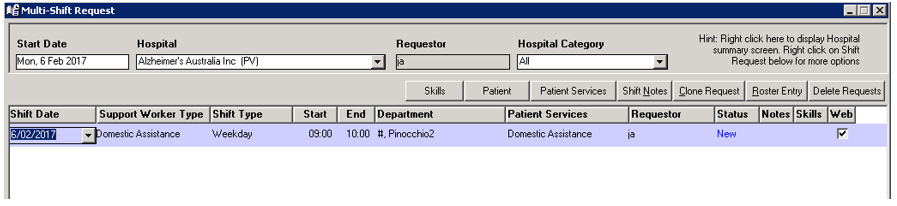
As per the Single shift requests, the Care plan must be linked and in the case of NDIS patients, the Care Support Item must be linked.
This completes the roster request. Proceed to the Multi-Shift rating for the next step. Select the shift/s to be rated and select an appropriate Nurse and assess selected. When roster is selected it follows the same process as for Single Shift rating above.
Viewing Roster and Updating at a later point
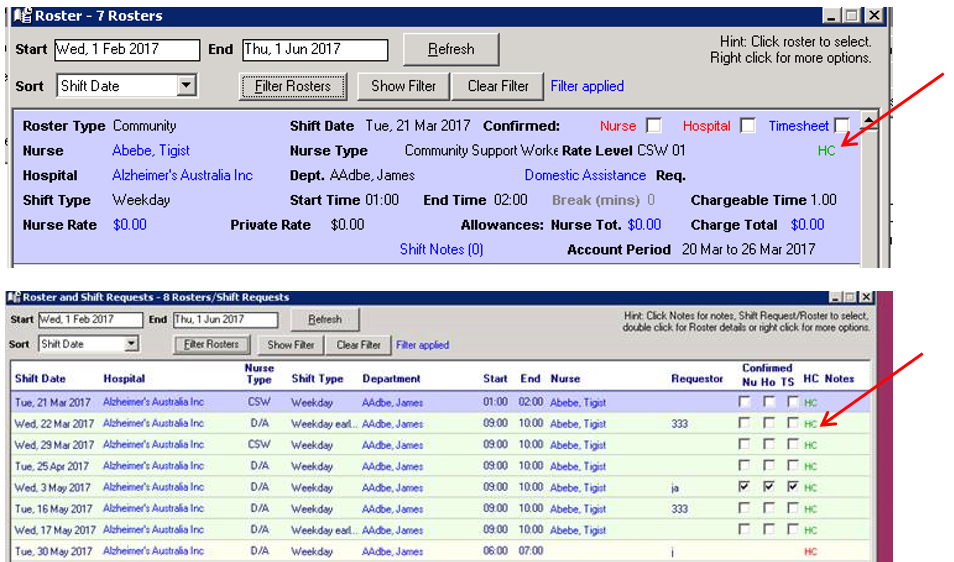
When viewing Rosters, an indicator has been added if a Home care Funding plan exists for that roster (see below). If the indicator (HC) is green the roster has been linked to an appropriate funding plan. If Red, A funding plan exists for this roster BUT it has not been linked. This may happen in the case of a roster being created via Venus Web and a nurse or hospital has no information of what rosters to link to which shifts and will have to be done later.
If you wish to amend the status or link a roster. Right click on the roster and select patient services and select the funding plan here. If it is an NDIS patient you will also have to link to the NDIS support item.
Invoicing
In the Hospital setup, when selecting how to produce invoices, an option exists to Separate Invoices by Funding Reference, if this is selected the invoices will be grouped and printed by this reference which is captured in the Funding Plan
Creation of NDIS Payment File
Initiating File Creation
In the menu tab Accounts > Generate NDIS Bulk Payment File. This option allows the creation of a csv file for input into the NDIA portal.
File creation rules
On Selection, select the following parameters:
- Account Period from and To
- All Patients or individual (Only NDIS patients to be visible)
The next screen shows all invoices selected for uploaded, summarised by hospital. You can unselect all (Clear all) and manually select the ones you want to send by expanding all and manually selecting or you may wish to select all and de-select ones you may wish to omit.
When selecting ok, a file is created and saved in the same location as your other financial files (see Data Entry > Accounting Directory).
All extracted invoices are marked as completed/extracted to prevent duplication.
Note: This can be undone but care must be taken to ensure that duplicates are not sent to NDIA.
File Detail
The following fields are set up
- Registration Number – this is your NDIA registration number set in the data entry section.
- NDIS Number – Patient NDIS Number. As captured in the patient record.
- Dates are start and end dates of account period. These dates reflect the date of first service and last service where records are summarised/ aggregated.
- Support Number is to be looked up on the new table (created above) by using Roster details. Rosters are linked to a support/ Care item and the code is looked up at time of file creation.
- Claim Reference is your Inv. number (may be more than one number if line is summarised/aggregated)
- Quantity/Hours – used when lines are summarised/aggregated
- Unit Price – this is based on the Support Care file for the support items and will be updated by the NDIA from time to time.
- GST code is inserted depending on incl or excl. GST
Note is there is more than 1 record with the same patient NDIS number and support type, these are summarised and only 1 record created as per NDIA rules.
Reports
The following reports are available:
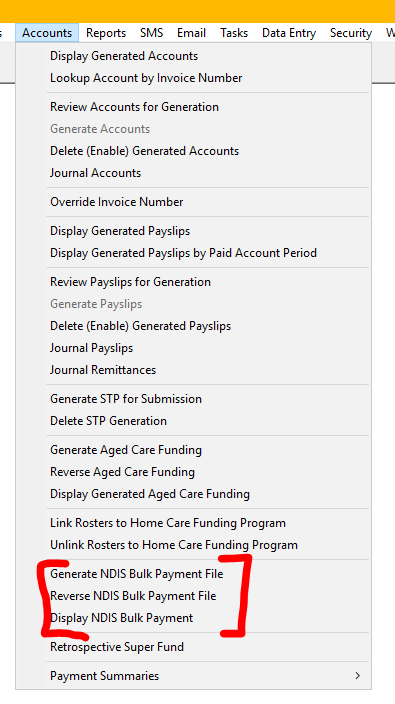
The NDIS report will save to your nominated accounting folder for direct submission to the NDIS Portal
Additional Information
NDIS Link