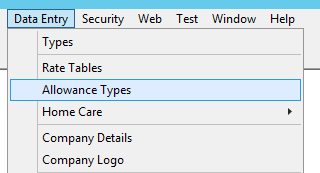
To add an Allowance -
- Select Insert from the toolbar.
- Description – Enter a description of the allowance to be printed on the invoice and payslip.
Note: If it is required that a per km rate be calculated, the description must include either “km” or “travel” in the description. These are not case sensitive and must have a space before and after.
- Active – Tick for the allowance to be active, remove the tick to de-activate the allowance.
- Sort Order – The order the allowances will appear in the drop-down menus.
- Start Date.
- End Date – If not known, leave blank and enter at a later date.
- Pay – The amount paid to the Nurse. This field can be left blank for reimbursements and completed on the Shifts > Roster screen.
- Charge – The amount charged to the Hospital. This field can be left blank for reimbursements and completed on the Shifts > Roster screen. If the charge rate is $0.00, no line entry will be made on the invoice.
- Applied – How the allowance is applied-
- Shift – Paid and charged on a per shift basis.
- Hourly – Paid and charged on an hourly basis.
- Reimbursement – A refund of expenses to the Nurse. This can be on-charged to the Hospital, if required.
- Percentage Allowance – The percentage is applied to the pay and charge rates for the roster, and to any other allowance that is not a percentage allowance.
- Journal Code – The accounting package account number for the allowance. Allowances are grouped by Journal Codes when exporting the Invoice and Payslips Journals from Venus and importing them into your accounting package.
- Patient Care – Add Patient Care code if required.
- Invoice – Exclude from GST Calculations. Tick if the Allowance is GST free. This can be used for Patients who pay the $5.00 co-contribution to the Agency.
- Payroll
- Taxable– Tick if the allowance is taxable.
- Exclude from Payment Summary – Tick if the allowance is not taxable and be excluded from the Payment Summary.
- Payment Summary Allowance Description – If the allowance is to be detailed separately on the Payment Summary, enter the description to appear on the Payment Summary.
- Payment Summary Separate Allowance – Tick if the allowance is included on the Payment Summary and is reported separately in the Allowances section of the Payment Summary. If this box is ticked, a Payment Summary Allowance Description must be inserted. It is possible for an allowance to be reported separately on the payment summary and NOT be eligible for PAYG withholding, e.g. laundry/dry cleaning allowance.
- Include in Compulsory Superannuation – Tick if the allowance is included in Employer Compulsory Super Contribution calculations.