Data Entry > Shift Request & Roster Setup
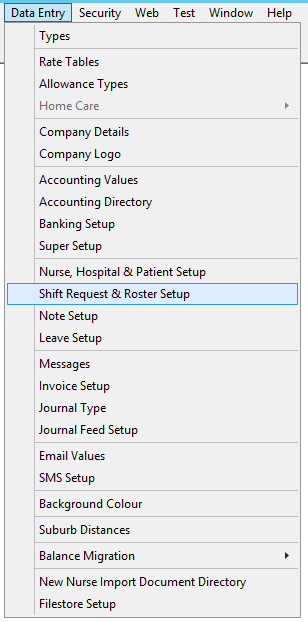
This screen sets a number of flags that determine how Venus manages Shift Request and Rosters.
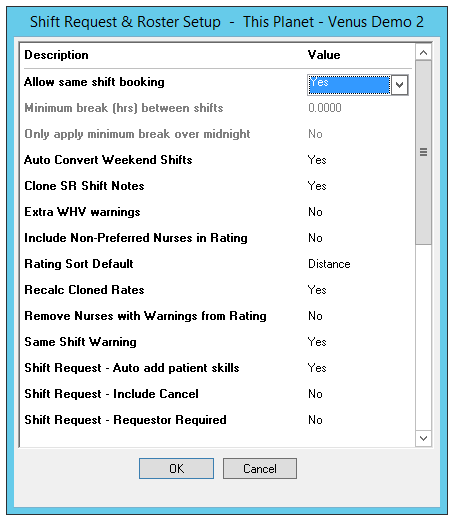
Allow Same Shift Booking
Some services like home care are short shifts and often subsequent to one another for the same patient. In this instance, you can roster a Nurse for ‘same’ shifts where (e.g.) they are both morning shifts but can be undertaken by the same nurse.
- Yes – Includes Nurses in the Rating process if they are already rostered on a shift with the same shift type and date.
- No – Removes Nurses from the Rating process if they are already rostered on a shift with the same shift type and date.
Minimum break (hrs) between shifts (Allow same shift booking must be "No" to activate this option)
Set the minimum break required between shifts. Venus will not include Nurses in the rating result where the Nurses have not had the required minimum break. A Validation message will appear when creating a roster where the minimum hour break has not been met.
- Yes – Sets the break.
- No – Does not set the break.
Only apply minimum break over midnight
This option is client specific.
- Yes – Applies the break.
- No – Does not apply the break.
This setting will work in conjunction with the existing “minimum break between shifts” setting. If “yes”, this setting will cause the minimum beak period to only be checked for shifts that start with different dates. For example, if one shift begins on the 13th and another begins on the 14th, they cannot be assigned to the same nurse if the minimum break time is not met, however for two shifts both starting on the 13th, the minimum break time will not be enforced.
Auto Convert Weekend Shifts
- Yes – Shifts with a Saturday or Sunday date will automatically convert to the first weekend shift type.
- No – Shifts with a Saturday or Sunday date remain as entered. We recommend this is set to No.
Clone Shift Request Shift Notes
- Yes – When a shift is cloned, notes attached to the shift are also cloned.
- No – When a shift is cloned, only the shift details is cloned.
Extra WHV warnings
This option is used when an agency has a lot of overseas workers. There are legislative requirements on how many hours can be filled by a nurse who is on a Working Holiday Visa.
- Yes – Adds the extra warnings.
- No – Does not add the extra warnings.
Include Non-Preferred Nurses in Rating
- Yes – Will include Nurses not preferred by the Hospital, and where the Nurse does not prefer the Hospital in the rating results. These Nurses are displayed at the bottom of the list in red text, with a line through.
- No – Nurses are excluded from rating results where they are not preferred by the Hospital and where the Nurses do not prefer the Hospital.
Rating Sort Default
This alters the default Sort Order used on the Single Shift Rating and Multiple Shift Rating Screens. The options are:
- Notified
- Distance
- Level
- Name Preferred and
- Language
Recalc Cloned Rates
When a roster is cloned, different pay and charge rates may be applicable to some of the newly created rosters e.g. A Thursday morning shift is cloned for 4 consecutive days, the rates payable on Saturday and Sunday will usually be different to the weekday rates.
- Yes - Venus will insert the correct pay and charge rates for each shift created
- No – Venus will not adjust the different rates
Remove Nurses with Warnings from Rating
- Yes - all nurses with any type of validation warning will be removed from the rating results. E.G. Expired Registration, Police check, Visa hours, General checks
- No – all nurses will be displayed
Same Shift Warning
Same Shift Warning is message that appears on the roster screen when a Nurse is being rostered onto shift that overlaps in time with an existing rostered shift.
- Yes – Activates the warning.
- No – The warning is not displayed.
Shift Requests – Auto add patient skills
This option allows you to include patient skills (those required by the patient to fulfil their care requirements) on shift requests
- Yes – Adds the skills.
- No – Hides the skills.
Shift Requests – Include Cancel
- Yes – Include Cancelled shifts on the Multi Shift Rating screen.
- No – Cancelled shifts are not displayed on the Multiple Shift Rating screen. We recommend this is set to No.
Shift Request – Requestor required
This will make a Requestor on Shift Requests a compulsory field.
- Yes – The Requestor field is compulsory for all shift requests.
- No – The Requestor field is not compulsory.
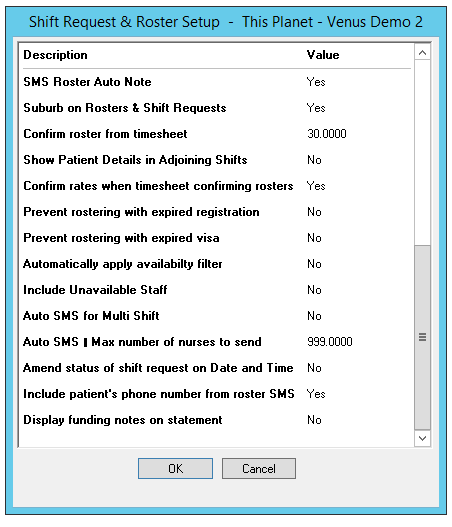
SMS Roster Auto Note
- Yes – Creates a shift note on a roster when an SMS is sent from the Roster screen.
- No – A shift note is not created.
Suburb on Rosters & Shift Requests
- Yes – Patient Suburb will be displayed on the Shift Request and Roster Screen.
- No – Patient Suburb will not be displayed.
Show Patient Details in Adjoining Shifts
- Yes – displays Patient name and suburb on the Adjoining shifts screen.
- No – does not display Patient name and address.
Confirm Rates when Timesheet Confirming Rosters
- Yes – Venus checks the rates when timesheet confirming rosters and advices if there is a difference.
- No – Venus will not check the rates.
Prevent Rostering with Expired Registration
- Yes – Removes Nurses with expired registration from the rating results.
- No - Nurses with expired registration will be included in the rating results. A warning will appear, but the allocator can still roster the Nurse.
Prevent Rostering with Expired Visa
- Yes – Removes Nurses with expired Visas from the rating results.
- No – Nurse with expired Visas will be included in the rating results. A warning will appear, but the allocator can still roster the Nurse.
Automatically apply availability filter
- Yes – Automatically sets the filter as per the Hospital Availability Filter tab on the Multi Shift Rating Screen
- No – the Hospital Availability Filter will not be applied.
Auto SMS for Multi Shift
- Yes – Automatically allows for the top number (see next parameter) of rated nurses to be SMS’s offering a shift
- No – No auto SMS available
Auto SMS – Number of Nurses to send
- This is the number of nurses that will automatically be sent an SMS is the above parameter is set to yes.