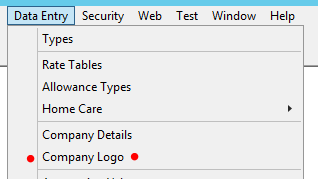
Data Entry > Set Company Logo
You can add and change your Company Logo in Venus. Your Company Logo is used on the payslips and invoices and several reports.
The logo should be in .bmp or .jpg format. Although there is no limit to the size of the logo file imported into Venus, a maximum of 256kb is suggested.
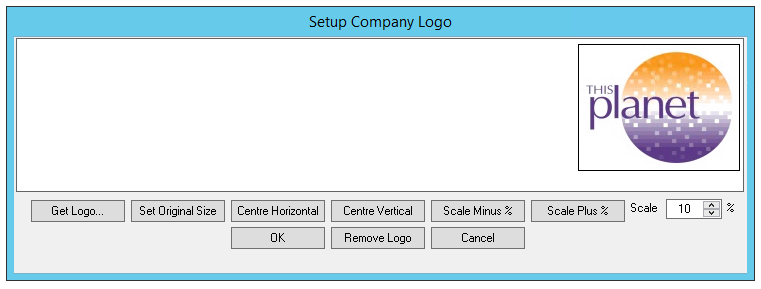
Adding your Company Logo
To add your logo to Venus –
- Select Get Logo.
- Choose your logo from the appropriate directory and file.
- Select Open.
Changing your Company Logo
To change your logo in Venus –
- Select Remove Logo (to remove the existing logo in Venus).
- Select Get Logo.
- Choose your logo from the appropriate directory and file.
- Select Open.
Resizing and Repositioning your Company Logo
To resize or reposition your logo use any of the following options –
- Set Original Size – Sets the logo to the original size.
- Centre Horizontal – Repositions the logo to the Centre Horizontal in the payslip and invoice header space.
- Centre Vertical – Repositions the logo to the Centre Vertical in the payslip and invoice header space.
- Scale Minus % – Increase the size of the logo by the % amount set in the Scale Box.
- Scale Plus % – Decrease the size of the logo by the % amount set in the Scale Box.
- Scale – The amount the logo is to be decreased or increased.
Review payslips and invoices to check the positioning of your logo.