Security > Security Configuration
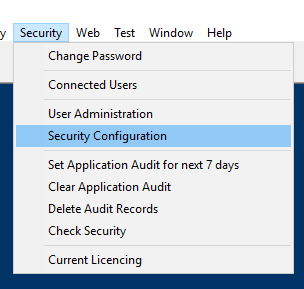
The Security Configuration screen can only be accessed by the Security Administrator.
The Security Configuration screen allows the Security Administrator to determine which menus and sub-menus are visible and accessible by the Security Groups. In addition, the Security Administrator can limit information visible to user groups. E.g. An Agency may not want their Normal Users to see the pay and charge rates on a Roster, the rates can be made invisible by making Roster Pay Rates and Roster Charge Rates invisible.
The Security Groups are –
- Security Administrator
- Security Normal
- Security Privileged
- Security Payroll
- Security Payroll Assistant.
The Security Administrator has full access to everything in the application and as such, is not listed in the security configuration drop-down menu.

To assign access levels for the Security Groups -
- Select the Security Group from the drop-down menu.
- Menu – All the Main Menus and the Sub-Menu headings are listed. Key actions or views are also listed under the Menu. E.g. Under Shifts Main Menu there is the option to make Roster Pay and Charge Rates invisible.
- Enabled – Tick the menus the selected Security Group can access and change. You would never have an item enabled and not visible although some items in the list don’t have the visibility tick box as hiding them is not an option.
- Visible – Tick the menus the Security Group can see. If you are able to change the item, it will be enabled but if you are not meant to change the item, enabled will be unticked.
- The information is saved when you close the screen.