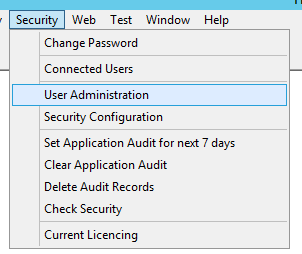
Security > User Administration
The User Administration screens allows the Security Administrator to -
- Add a New User
- Reset a Password
- Change User Groups
- Delete a User
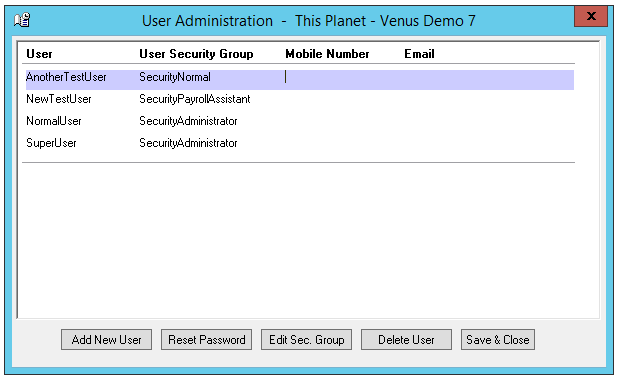
User Administration – Adding a New User
To add a new User –
- Select Add New User.
- Enter the new User’s ID (Name of User – alpha or alpha/numeric only). No spaces are permitted
- The default password is displayed. The Password can be overtyped, if required.
- Add both a Mobile Number or Email, (email is required as a minumum)
- OK – Save and exit.
- Cancel – Exit without saving.
By default, the new user’s security group is set to SecurityNormal.
The new User should log into Venus with their User Name and the default password and change to a secure password in Change Password.
A new User cannot be recorded with the same name as a previously deleted User or a user name that already exists.
User Administration – Reset a Password
If a User forgets their password the Security Administrator can reset their password.
To reset or change a password –
- Highlight the User.
- Select Reset Password.
- The default password will be displayed. The Password can be overtyped, if required.
- Reset Password button – Save and exit.
- Close – Exit without saving.
The User should log-in to Venus using the default password and change to a secure password in Change Password.
User Administration – Change User Security Group
Only the Security Administrator or nominated User can change the security levels in User Groups.
To change the Users Security Group -
- Highlight the User.
- Select the Edit Sec. Group button and chose from the drop-down menu.
- OK – Save and exit.
- Close – Exit without saving.
User Administration – Delete Users
Only the Security Administrator or nominated User can delete a User. When a User is deleted their activities log is retained.
To delete a User –
- Highlight the User.
- Select Delete User.
- OK – Save and exit.
Cancel – Exit without saving.