The first is in the Patient Details section where we nominate if a patient is an Aged care patient, an NDIS patient or neither.
In addition, you may select whether statements and budgets should consolidate invoices into a single line or have them itemise the detail within the invoices. This only pertains to the Funding statements and budgets.
Patient > Patient Detail
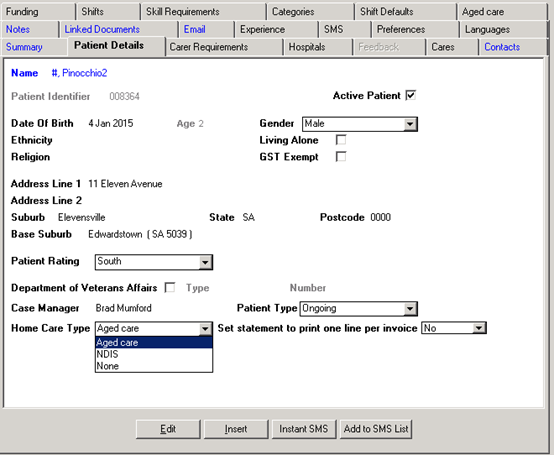
Aged Care Patient
If Aged Care a new Tab within Patients becomes active and the following items can be set.
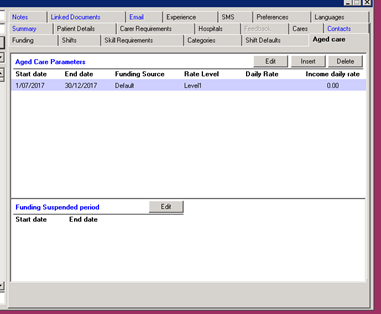
In the first screen you are able to insert, edit or delete aged care parameters for the patient. There can be more than one set of parameters and there are split by date ranges. This allows for changes in specific funding and charge rates during the course of a program. See below for detail.
In the first screen, we can add periods when a patient’s funding may be suspended. From time to time a patient may be admitted to hospital or similar where Aged Care funding to the agency (as well as service should be suspended. This section allows the agency to enter any such periods. Funding Suspended period start and end date (default blank) – allow multiple records e.g.:
- 10/1/2017 – 13/1-2017
- 2/2/2017 – 10/2/2017
- Etc.
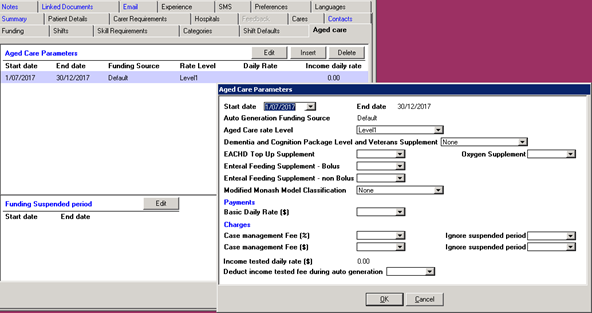
If we select to insert/change/delete any of the Aged Care parameters, a separate pop up screen appears. The detail is as follows:
- Start and end dates. If this is the first range for a program the start date defaults to the start date of the program. If it is a subsequent range, the start date defaults to the end date of the previous range + 1 day. The end date cannot be past the end date of the funding program. NOTE: the date ranges are user controlled and is a fund generation function is initiated and a date range is absent NO FUNDS WILL BE GENERATED.
- Auto Generation Funding Source. This is the Funding Source that is set on the Funding program. This is not amendable here as only one program can have funds generated (these are set in under the funding Tab where all programs are setup.
- Aged Care rate Level – drop-down list from Rate table (Home Care Subsidy Rates)
- Supplementary funding. When the patient receives additional funding, which are to be used in the Auto Generation of Funding, these are indicated here.
- Dementia and Cognition Package Level and Veterans Supplement - drop-down list from Rate table (Home Care Subsidy Rates) plus first option to be none (default)
- EACHD Top Up Supplement Y/N (default N)
- Oxygen Supplement Y/N (default N)
- Enteral Feeding Supplement – Bolus Y/N (default N)
- Enteral Feeding Supplement – non-Bolus Y/N (default N)
- Modified Monash Model Classification – drop-down with same entries from rate table PLUS default option of None.
- Payments. If the Patient is to pay an additional daily fee, this is indicated here. It is a daily rate and when funds are auto generated it will take the number of days and add an amount to the program. The default is taken from the agency global setting but can be overwritten in a patient by patient basis
- Charges, if your agency charges a case management or administration fee this is indicated here. Either a percentage or daily rate can be listed. The default is taken from the agency global setting but can be overwritten in a patient by patient basis. Each of the charges has an option to “Ignore funding suspended period”. If set to Yes then the charges will still be applied regardless if the patient is suspended from funding.
- Income tested daily rate $0 - $9999.99 (default $0). This amount may not exceed the total daily rate in the rate table for the rate level selected above. When auto generation of funds occurs, this amount is considered and if greater than zero the Aged care rate level is reduced by this amount and a separate line on the statement and budget is created.
NDIS Patient
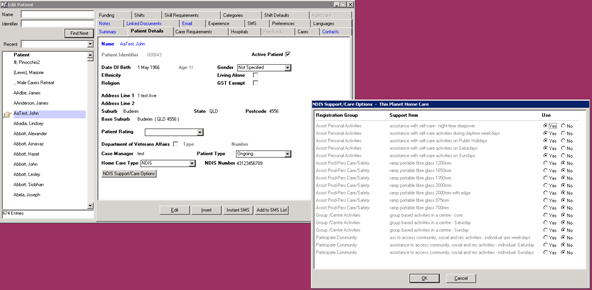
If a patient is set as an NDIS patient, a field is available to enter the NDIS registration number of the patient. In line with the NDIA rules this number must start with 43.
At this point the patients Support/Care options must be set. Selecting the NDIA Support/care Options opens another window. Here we are presented with all the Support/Care Options that the Agency has indicated that it provides. The default is no for all and the care items that the patient is to be provided must be selected here.
These will be used when rostering as each roster must be linked to a Support/Care Item to enable payment claiming.