Select the hospital name, Support worker type, Shift Date and Type, they start and end time and requestor. The Patient Name must be added to the field names department. Skills can be updated at this point. Enter the rate availability button and select an appropriate Nurse for the shift and enter Asses Selected. Regular warnings (see rating section of this manual) if required. When happy with these select Roster. The Insert Roster screen is presented.
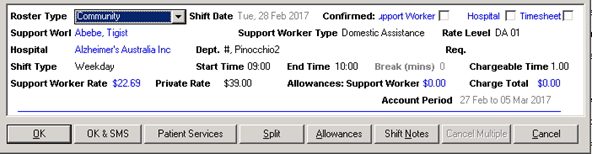
At this point you should select “Patient Services” which allows you to select the services and Link the roster to a funding plan. If you miss this and a funding plan is in place the system will issue a warning saying the patient has a funding plan available – would you like to use it.
When you select OK, the system will check that the shift falls within the parameters of the funding plan (number of shifts per period, amount allocated, etc.) as well as the Home Care Type being set to either Aged Care. If the roster falls outside of the funding parameters, the system issues a warning. The system will allow an override and proceed. The total hours or dollars (depending on the set up) are checked per period to ensure that this roster does not exceed the funding program.
When we select a Patient Service for a shift, if the patient is an NDIS patient and a patient service is selected, immediately after selection another window (similar to below) appears with the list of NDIS Support Items for this patient. Allow for one to be selected and store with the roster. This second selection does not appear with the Aged Care patients. See below for the comparison rules #.
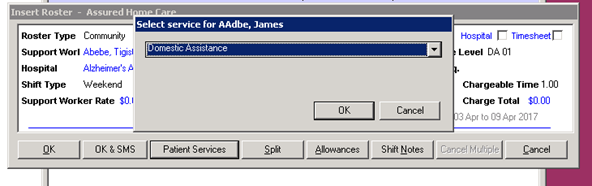
The Roster is created and the funding plan is updated with the relevant details. Note the rate used for the roster is from either the rate table or the amount entered into the shift request at this stage. The amount in the funding plan is not used in the roster process.
# Comparison Rules
Parameters
- If Fund type = Hours
- AND If period = weekly
- Summation hour rostered for the week (Monday 00:01 – Sunday 23:59), add the hours for this shift and check if > Hours per week
- AND If period = fortnightly
- Summation hour rostered for the week (Monday 00:00 AM – Sunday 24:00 PM as well as previous week and following week. Add the hours for this shift to the current week and then ensure that either current week plus last week OR current week plus next week do not exceed maximum.
- AND If period = 4 Weekly
- Summation hour rostered for the week (Monday 00:00 AM – Sunday 24:00 PM as well 3 weeks prior and 3 weeks after. Add the hours for this shift to the current week and then ensure that either current week plus prior 3 weeks OR current week plus next 3 weeks do not exceed maximum.
- AND If period = monthly
- Summation hour rostered for the calendar month (First 00:00 AM – 28th,29th,30th or 31st 24:00 PM), add the hours for this shift and check if > Hours per month
- AND If period = date range
- Summation hour rostered for the entire program, add the hours for this shift and check if > Hours per period
- AND If period = weekly
- If Fund type = Dollars
- The same as for the hours BUT use the charge rate - chargeable hours * charge rate on roster