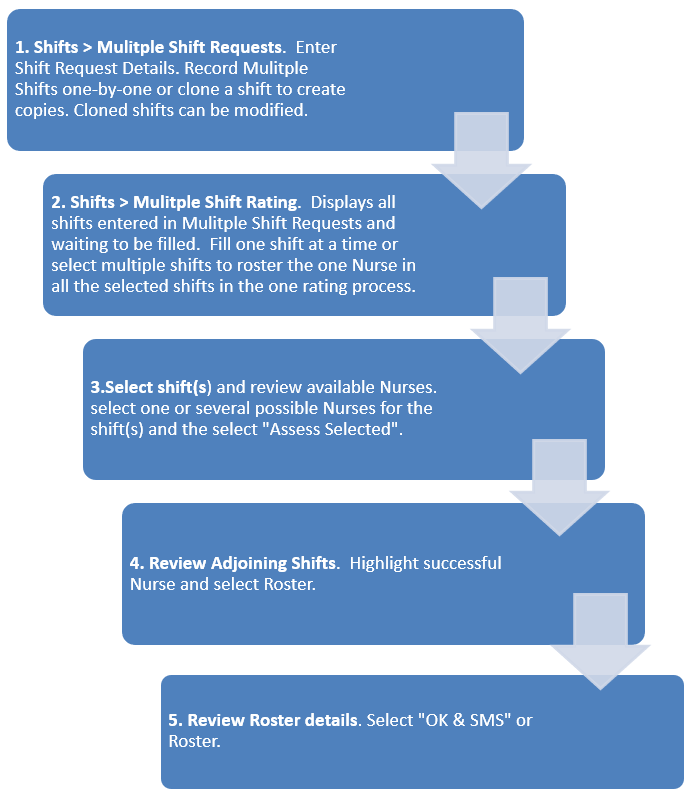
Multi-Shift Request and Rating is designed for Agencies who are handling a large volume of shift requests.
The Multiple Shift Rating screen allows you rate each shift individually for the best available Nurse, or you can allocate One Nurse to Many Shifts in the one rating process. This is useful when allocating many short shifts for Patients on a day and filling recurring shifts for a Hospital where continuity of staff is requested.
The Process
1. Multiple Shift Requests
Shifts > Multi Shift Request
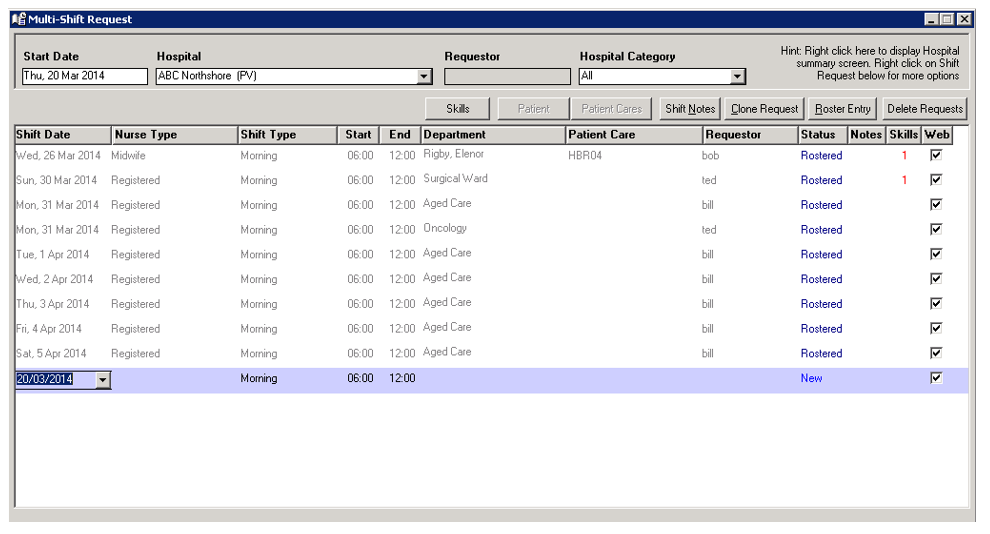
Complete the information required. Most fields are self-explanatory, however, please note.
- Click “Insert” for a new line.
- Requestor – a free text filed to record the name of who requested the shift, docket #, purchase order number etc. The Requestor field will be inserted into each new shift request.
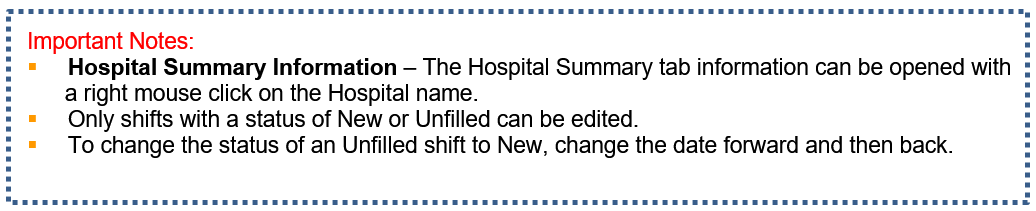
- Department – Blue text indicates departments are linked to the Hospital. All Patients linked to the Hospital will be at the top of the list.
- Skills - When Patient is selected in Department, only skills selected on the Patient Skill Requirement tab will appear. Select the skills required for the shift or select “Show All Skills” for one-off requirements. For a Hospital all skills are displayed, select the required skills
- Patient and Patient Services – available when shift is for a Patient. Only services allocated to a Patient can be attached to a Patient shift.
- Shift Notes – Add multiple Notes. A Note must be added to a shift before it is cloned, for the note to be duplicated on the cloned shifts. Setup Venus to clone shift notes when cloning a shift request go to: Data Entry > Accounting Values > Shift Request and Roster Set up.
- Clone Request - create multiple, repeated shifts. Cloned shift can be individually modified. Be careful not to duplicate the original shift.
- Roster Entry – For shift requests with a status of Rostered, the roster can be opened and viewed
- A new shift request line is created when you tab off a line or you select “Insert”.
Auto SMS Nurses for shifts requested.
Data Entry > Shift Request & Roster Setup
There are two options that must be considered:
- Auto SMS for Multi Shift yes/No. If set to yes, the default for all rated multi shifts is that the nurses rated will all be sent an SMS informing them of the available shift. This can be over ridden in the multi shift rating screen.
- Auto SMS Max number of Nurses to send 0 – 999. This is only in operation if the previous parameter is set to yes. It indicates that the first 999 (number selected) nurses rated will be sent an SMS. If the number is set to 10 then the first 10 nurses rated will all be sent an SMS informing them of the shift availability.
Shifts > Multiple Shift Request
When a Shift request is saved, and the SMS check box is checked the system will run a preliminary rating and create an SMS for the top 999 (the max number selected under Data Entry). Before sending a warning is provided and then the SMS sent to the list of nurses.

2. Multiple Shift Rating
Shifts > Multiple Shift Rating
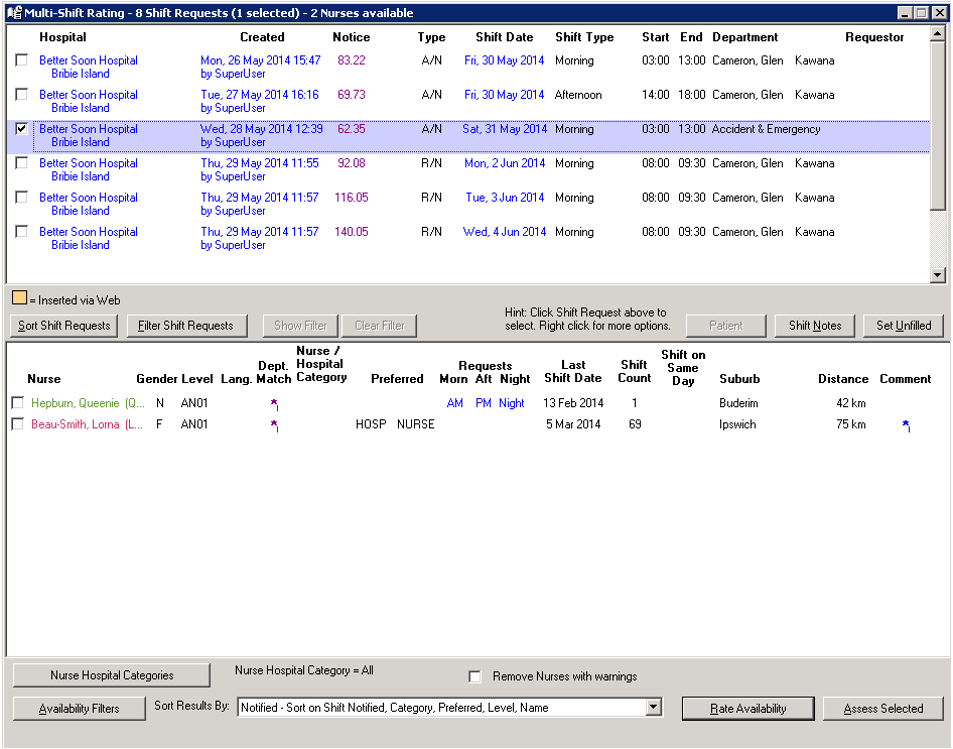
All shifts requests recorded in Multiple Shift Requests are displayed in the Multiple Shift Rating screen waiting to be rated and rostered.
The shifts requests are listed in the top section of the screen and they are in order of date, shift type and then Hospital name.
The number of shifts waiting to be rostered is displayed in the blue bar on the top of the screen.
3. Multiple Shift Rating – Displayed Shifts
Most of the functions are self-explanatory. However, please note:
Shift Request Filters – The filters refine the shifts displayed on the Multiple Shift Rating screen based on the selected criteria e.g. Nurse Type, Hospital. When shift request filters are active, the filters are displayed on the centre grey bar. This filter allows you to select multiple options for Nurse Type, Department and Hospital Categories.
Sort – Determine the order the shifts are displayed by dragging and dropping the criteria from the left column to the right.
Set Unfilled – If a shift cannot be filled highlight the shift, select “Unfilled” and the reason. The shift will be removed from the Multiple Shift Rating screen and the status of the shift on the Multiple Shift Request screen is changed from “New” to “Unfilled”.

4. Multiple Shift Rating – Display Available Nurses
To locate and rate available Nurses, tick a shift and select “Rate Availability”.
To fill multiple shifts with the one Nurse, tick all the required shifts. Venus will rate available Nurses and only display Nurses who are available to fill all the selected shifts.
Available and suitable Nurses are displayed. Most fields are self-explanatory, however, please note:
- Lang (Language) - A blue asterisk (*) will appear if a Nurse speaks the same language specified for a Patient.
- Dept. Match – A purple asterisk (*) will appear if there is a match between the department and the Nurse’s department preference recorded under Nurse>Departments.
- Nurse / Hospital Category – A blue asterisk (*) will appear if a Nurse has a preference for the Hospital’s category type.
- Preferred – If the Hospital prefers the Nurse “Hosp” will appear and if the Nurse prefers the Hospital “Nurse” will appear, and if the Patient prefers the Nurse “Patient” will appear.
- Last Shift Date – The last date the Nurse worked at the hospital.
- Shift Count – The number of shifts the Nurse has worked at the hospital.
- Suburb – The Nurse’ base suburb (Nurse Details tab).
- Distance – The estimated distance between the Nurse and Hospital base suburbs.
- Comment – A blue asterisk (*) will appear if there is a comment recorded for the Nurse.
Review potential Nurses. You can remove Nurses who do not meet all the validation requirements, tick “Remove Nurses with Warnings”. This can be applied to all shift automatically under Data Entry > Shift Request and Roster Setup. See Compliance Management.
Shortlist potential Nurses and select “Assess Selected”.

5. Review Adjoining Shifts
The Adjoining Shifts screen shows all the shifts the selected Nurses are rostered onto 5 days before and after the shift being rostered.
When the adjoining shifts are with a Hospital: the date, Hospital and the start and end times are displayed.
When the adjoining shifts are with a Patient, the date, Patient name, Patient suburb and start and end times are displayed.
It also displays the number of hours for this shift; the account period; and the past 4 weeks.
Accessible from the Adjoining Shifts screen –
- Nurse Summary Tab – Right mouse click on the Nurse name.
- Nurse Availability Notification – Update the Nurse’s availability and add a Nurse Note, if required.
- Add Shift Note > Phoned Nurse
- Send SMS messages.
If you are unhappy with the short-list of Nurses, select “Cancel” to return to the Multiple Shift Rating screen and make a new selection of Nurses.
To select a Nurse to fill the shift, highlight the Nurse and select “Roster”.
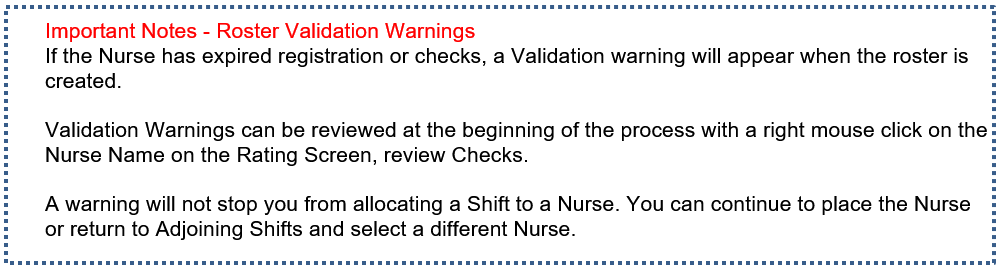
If there are any validation warnings, they will appear now. See Compliance Management.
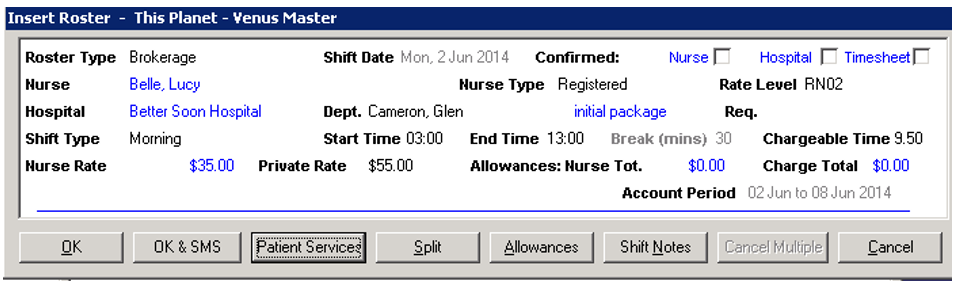
6. Roster
A Roster is created and Pay and Charge rates are inserted based on the Hospital’s Rate Table and the Nurse type and grade; and the type of shift.
Check the information on the Roster, if all is correct select “OK and SMS” or “OK”.